
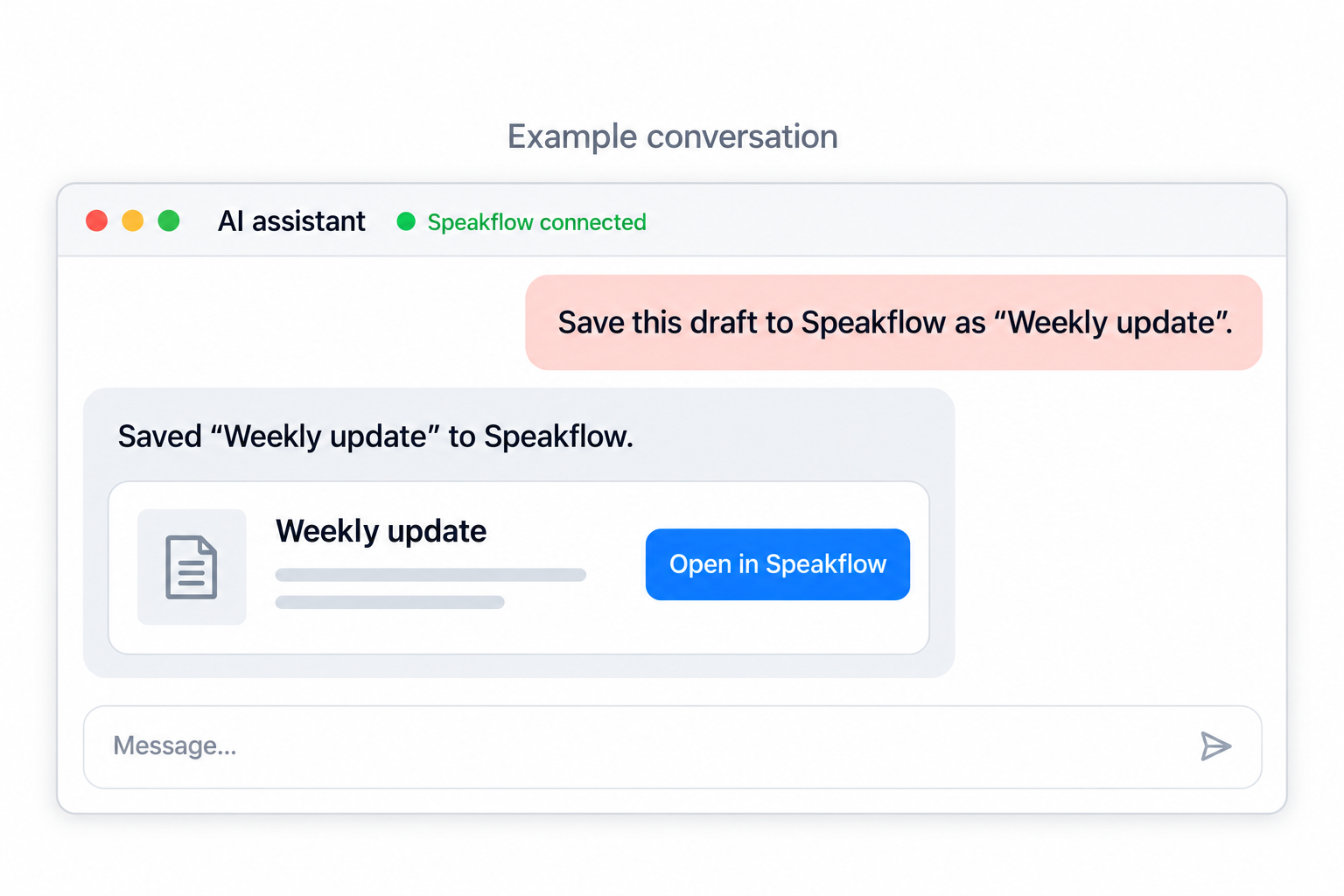
Speakflow's teleprompter MCP connects your AI assistant to your scripts. MCP stands for Model Context Protocol, a standard that lets AI apps work with other tools.
This guide shows you how to connect ChatGPT or Claude, save a script from your conversation, and open it in Speakflow to present. You can also use the connection to update existing scripts.
Before you start
You'll need a paid Speakflow plan and access to a workspace. Sign in to the Speakflow team you want to use. Your assistant works with scripts in your current team's default workspace. You'll need access to that workspace.
Choose your AI assistant below. Once it's connected, the same script-writing steps work in either app.
1. Connect your AI assistant
Connect ChatGPT to Speakflow
- Open ChatGPT Plugins in your browser.
- Select the + button, then Add custom MCP server.
- Enter Speakflow as the name. Under Connection, enter https://www.speakflow.com/mcp as the server URL.
- Choose OAuth authentication and dynamic client registration (DCR). Speakflow supports automatic registration, so you don't need to supply a client ID or secret.
- Review the warning, select I understand and want to continue, then Create as a plugin.
- Install the plugin and follow the prompts to sign in to Speakflow and authorize access.
- In a ChatGPT conversation, type @ and select Speakflow.
If you can't add a custom server, check your workspace permissions with an admin. See OpenAI's custom MCP setup guide for current availability and setup details. ChatGPT may ask you to confirm changes before saving them.
Connect Claude to Speakflow
- In Claude, open Customize → Connectors.
- Click + Add → Add custom connector.
- Enter Speakflow as the name and https://www.speakflow.com/mcp as the server URL.
- Continue to the authentication settings and choose Sign in now. If an OAuth client option appears, choose Register automatically.
- Finish adding the connector, then connect to Speakflow. Follow the sign-in prompts and review the permissions. Allow read and write access if you want Claude to save or edit scripts.
- Open a Claude conversation. Click + → Connectors and enable Speakflow.
Using Claude with a Team or Enterprise organization? Ask an owner to add the connector first. See Claude's connector setup guide for your account's steps.
To check the connection, send this message in your conversation:
Show me the five Speakflow scripts I updated most recently.
Your assistant should return scripts from your connected workspace. If you haven't written a script yet, start with the next step.
2. Write your first script
Before drafting, choose how much you want to write out. Full Script or Talking Points? walks through when to use each approach.
Paste your notes into the conversation and ask your assistant to turn them into a script. For example:
Use these notes to write a two-minute customer update about this week's product changes. Keep the sentences easy to say out loud. Show me the draft before saving it to Speakflow.
Read through the draft. If something sounds awkward, ask your assistant to change it. When you're happy with it, send:
Save this as a new Speakflow script. Use “Customer update” followed by today's date as the title, and give me the link.
Your assistant saves the script and gives you a link. Click it to open the script in Speakflow.
3. Open and present your script
- Click the script link in your assistant's reply.
- Review the text in Speakflow and make any final edits.
- Click Present Script to open the teleprompter.
Read it aloud once before recording. A sentence that looks fine on the page can still be hard to say. Check the timing, too. When you're ready, use your usual recording setup. You'll control scrolling and recording in Speakflow.
See The Presentation Screen for help with presenting. To choose how the text moves, see Teleprompter Scroll Modes.
Edit an existing script
Ask your assistant to list your recent Speakflow scripts, then tell it which one to read. You can request changes to part of the script:
Read this script and suggest a shorter introduction. Show me the changes before saving them.
After reviewing the changes, ask your assistant to update that script in Speakflow. To review or restore an earlier version in Speakflow, follow the Version History guide.
To keep the original, ask it to save a new script instead. This is useful for next week's update or a shorter version of the same video:
Make a 60-second version of this script for LinkedIn. Save it as a new Speakflow script with “LinkedIn version” in the title. Keep the original unchanged.
Keep your scripts organized
To add a label, first ask your assistant to show your available Speakflow labels. Choose one, then ask it to apply that label to your script and keep any existing labels.
To move a script into an existing folder, you can refer to another script already in that folder:
Move this script into the same folder as my previous customer update.
Your assistant needs the folder's ID to make the move, which it can read from the other script. If the folder is empty, move the script in Speakflow instead. Folder moves stay within the connected workspace.
MCP can't currently list folders or create folders and labels. See Organizing Scripts with Folders and Labels to create them in Speakflow.
For ideas on organizing scripts across regular recording sessions, read A Cleaner Recording Workflow Starts With Your Scripts.
Troubleshooting
- Can't connect: Check the server URL, your paid subscription, and access to your team's workspace.
- Can read scripts but can't save: Reconnect and allow write access. You also need permission to edit the script in Speakflow.
- Can't find a script: Ask your assistant which workspace is connected. Confirm the script belongs there.
- An update reports a newer edit: Ask your assistant to read the latest version before applying your changes again.
- A long script is cut off: MCP returns up to 30,000 characters of script content. Edit longer scripts in Speakflow so you can work with the full text.
Disconnect Speakflow
Disconnect Speakflow in ChatGPT or Claude and revoke the authorized application in Speakflow to stop its access. Disconnecting doesn't delete your saved scripts.
While connected, the AI app can read account and workspace details, scripts, and labels. Write access also allows script changes and deletion. Data shared with the AI app is handled under its terms and privacy policy.