
Download the Speakflow Desktop App
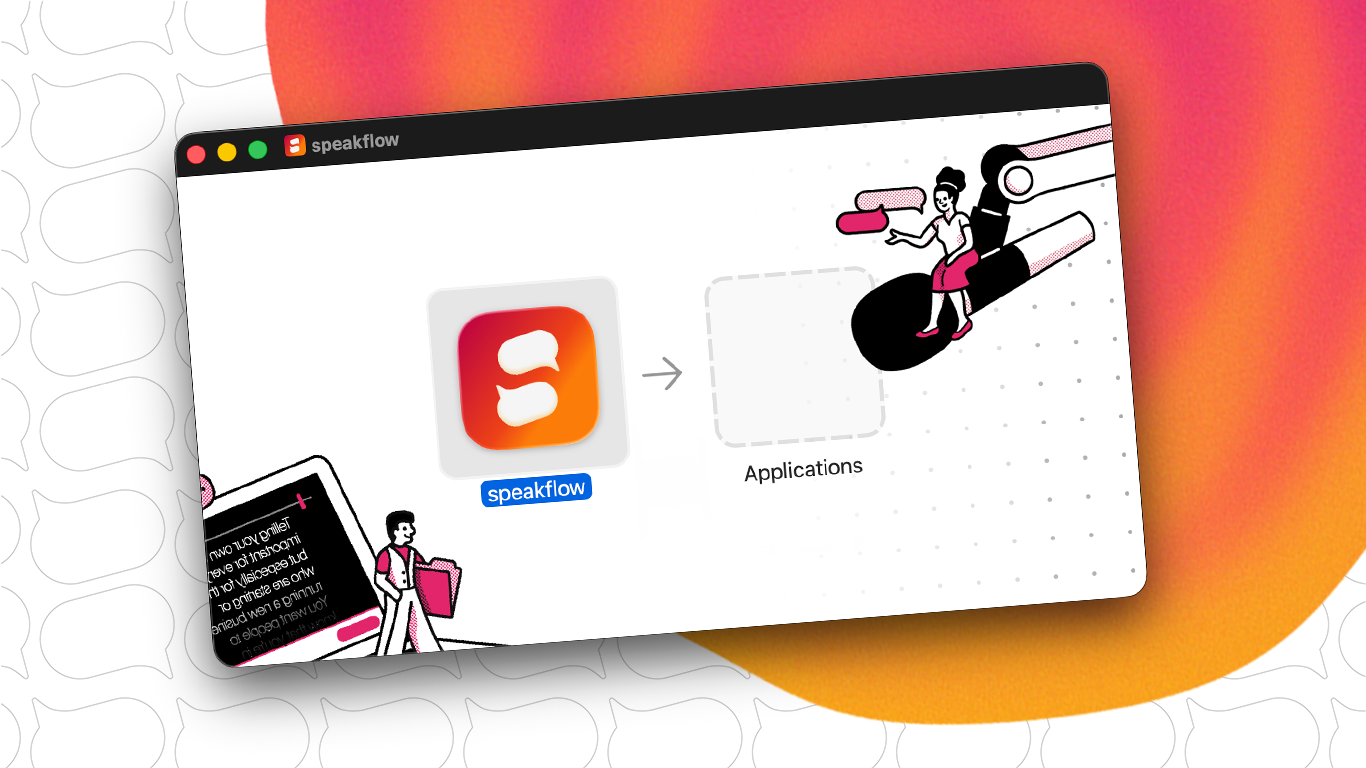
Features:
- Always on top.
- Invisible to screensharing and screen capture.
- Opacity control so you can overlay anywhere on your desktop.
Beta Limitations (Features in Progress):
- Video recording within the app.
- Script creation (existing scripts are loaded from your account).
- Workspace organization
If you'd like a more in-depth overview, check out the docs for the Speakflow Desktop App.
In-Browser Overlay
Note for Apple/Mac users
You must enable Screen Recording for your browser (Chrome, Firefox, etc) - https://support.apple.com/guide/mac-help/control-access-to-screen-recording-on-mac-mchld6aa7d23/mac
*Overlay is desktop only. Mobile browsers do not support overlay.*
*Overlay is desktop only. Mobile browsers do not support overlay.*
Overview
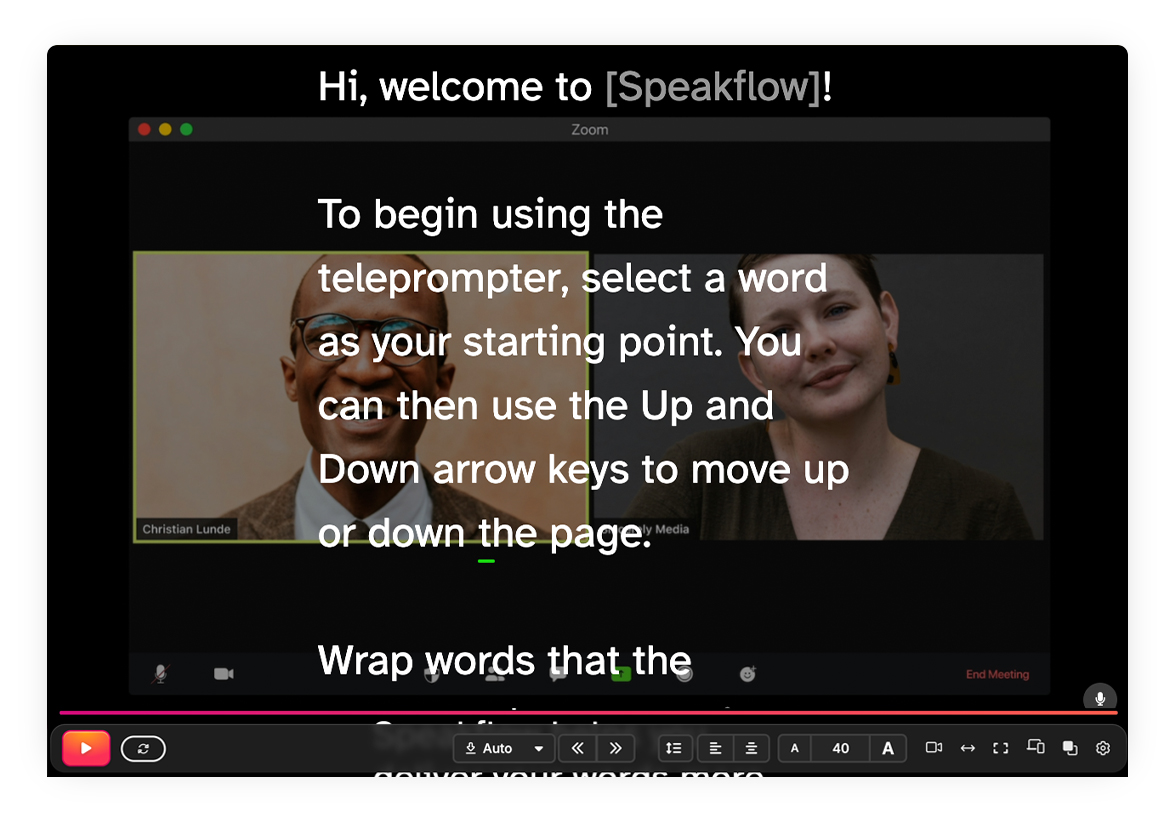
Speakflow's Overlay mode allows you to see other applications underneath your script while you're presenting. This means you can keep an eye on your audience through a video conference platform like Zoom, without having to switch windows or lose your place in your script.
Please note that Speakflow currently only allows you to view other applications in Overlay mode, not control them. To control other applications, you'll need to switch to them directly.
Using Overlay
- Join your video conference as usual, using a platform like Zoom, Webex, or Google Meet.
- In Speakflow, click the "Overlay" button in the bottom right corner of the screen. (If you're using a smaller screen, you may see an icon instead of a button.)
- In the "Overlay" modal that appears, click the "Window" tab and select the window you want to share.
- Click the "Share" button, and the selected window will appear behind your script.
Note: If you want to use Overlay while the browser is in fullscreen mode: First, select a window, then go fullscreen.
Step 1:
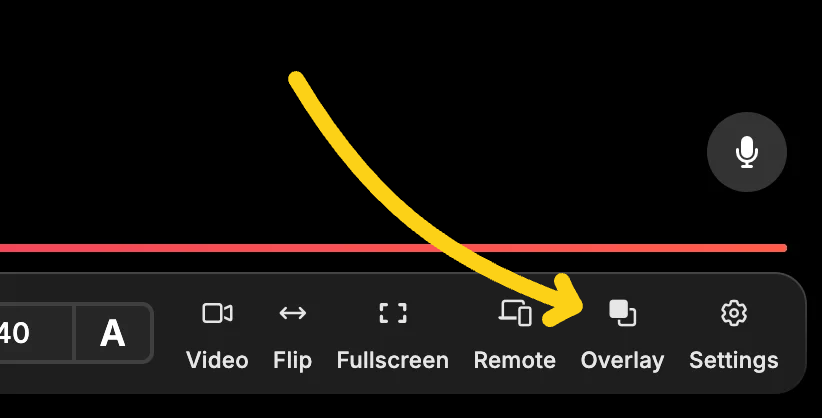
Step 2:
Note: The browser modal below will appear after you click "Overlay, you will be presented with three tabs: "Entire Screen", "Window" and "Chrome Tab".

