Collaborate with your team – share scripts and access to all Pro features.
Overview
The Speakflow Team feature allows Subscribed members to add collaborators to their Team. You can create and write scripts together, sync multiple devices, and keep track of revision history. When a member is part of your team, they will have access to all subscription features for Scripts that are shared with the team.
Paid features are available on scripts that are shared with the team. Once a script is shared with the team, any user on the team can use the all features. The paid features include unlimited flow, device syncing, recording & storing videos, etc. As long as they are using a script that is shared with the team, these features will be available to any member of the team.
Screenshot 2026-06-29 130113.png14.39 KB
Getting Started
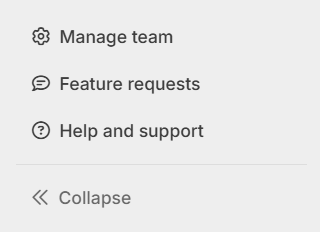
Go to "Manage Teams" from the sidebar. Every account starts with a team using their Profile name.
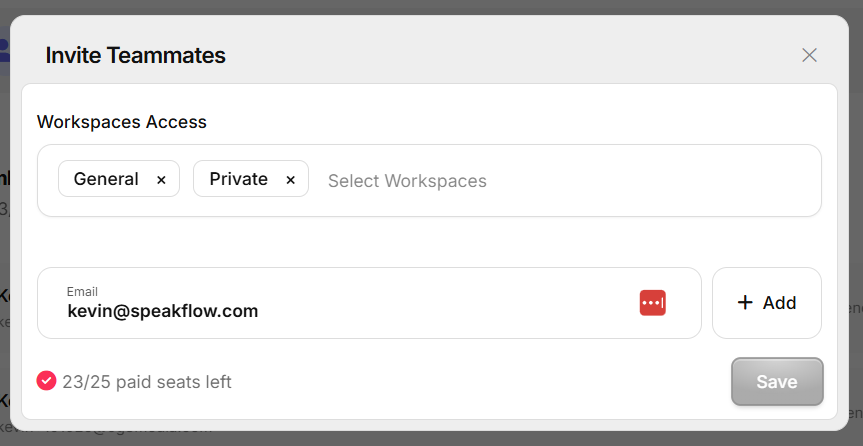
You can invite members by entering their email.
Screenshot 2026-06-29 130137.png18.86 KBClick "Invite Teammate" and the modal with appear.Screenshot 2026-06-29 130208.png39.84 KBHere you can set what workspaces they're invited to (Additional workspaces are limited to Studio accounts - other subscriptions start with 1 default workspace), what Role they have on your team, and their email to add them.
Roles
There are two roles – Admin and Editor. All team members can view and edit scripts, sync devices by opening the script and have access to Pro features.
Admins can: add and remove team members, delete the team entirely (careful!), invite other members, and share scripts with the team. Editors can: share scripts, read/edit scripts that are shared with the team
They should receive an email with a link to confirm and join the email.
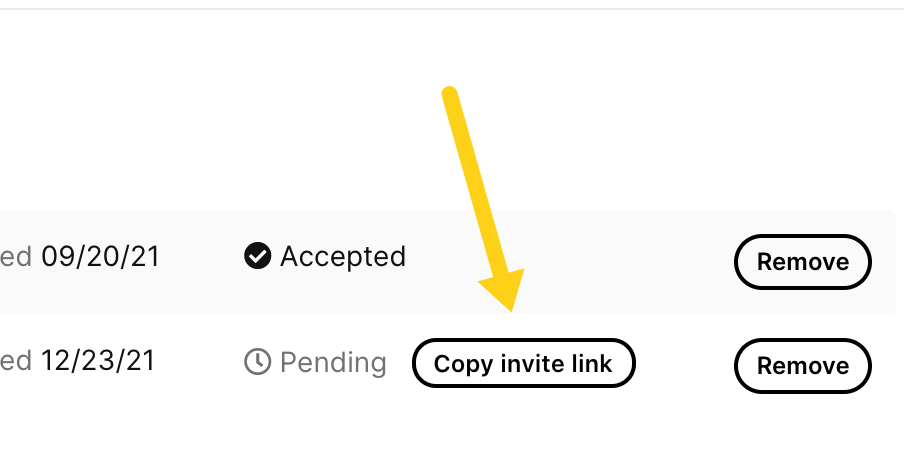
You can also click the "Copy Invite Link" to copy the invite link. You can send this link to your teammate via email, text, etc. If they have already created an account, they should sign in and click the link. If they don't yet have an account, they'll have to create one first then join the team via the link. image.png38.69 KB
Sharing Scripts With Your Team
To share a script with your team, navigate to your Scripts. Then on the script you want to share, open the drop menu and select "Modify share settings". docs-team-share-settings.png55.87 KB On a Studio account you can also organize your team members into workspaces to share with scripts with select members.
Ready to try Speakflow?
Write a script, hit record, and read naturally. Free to start.