
Enabling Screen Recording on Mac
In this help doc
Allow your browser to capture another window for in-browser Overlay on Mac.
Overview
In-browser Overlay captures another window to display it behind your script. On a Mac, this requires permission for your browser to capture the screen. Recording your webcam uses separate camera and microphone permissions; webcam recording alone does not require screen-recording permission.
Steps to Enable Browser Access for Speakflow
1. Open System Settings
- Click the Apple menu () at the top left of your screen.
- Select "System Settings."
2. Navigate to Privacy & Security
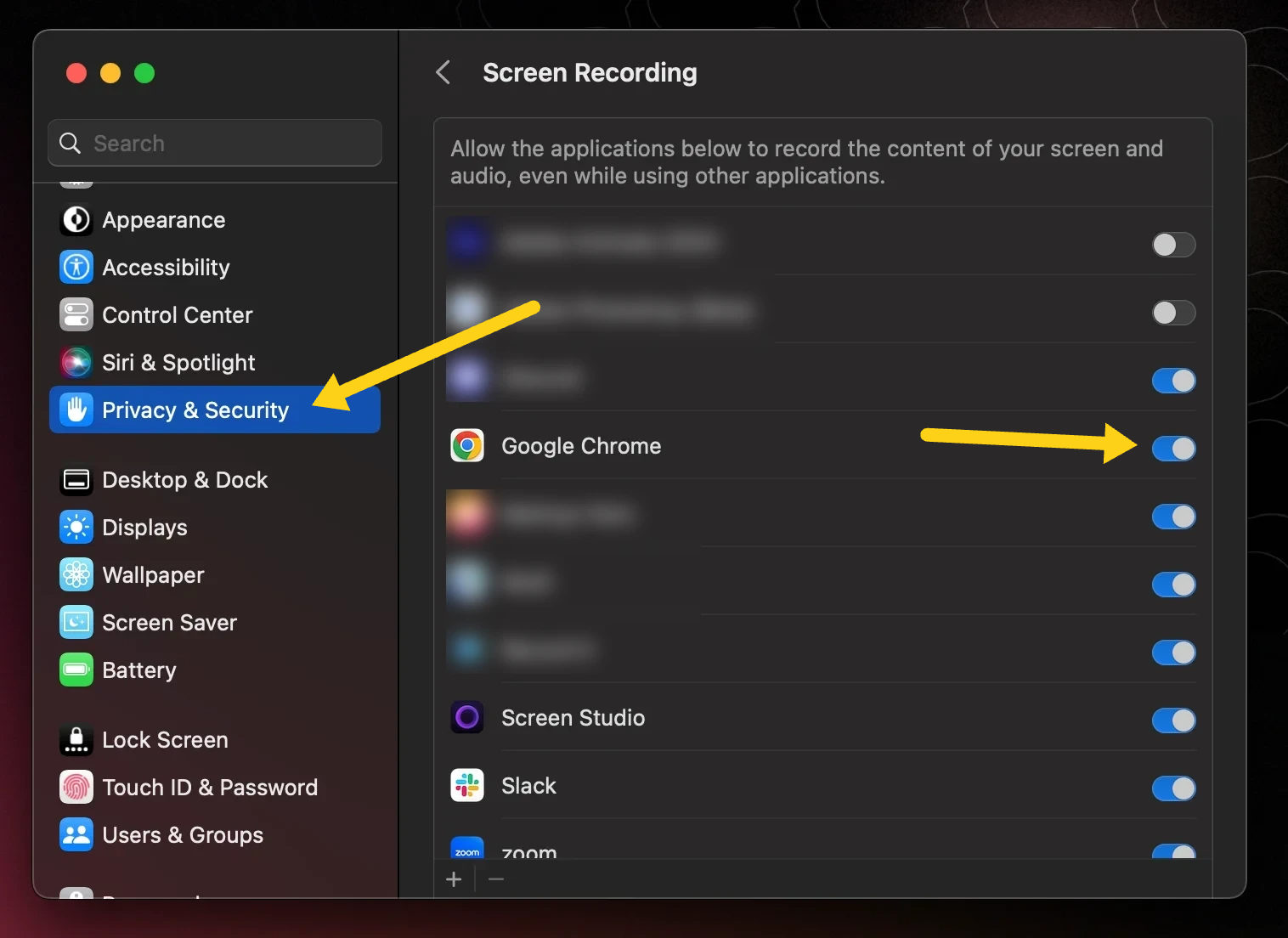
- In System Settings, click on "Privacy & Security" in the sidebar.
3. Adjust Screen Recording Settings
- Open Screen & System Audio Recording in Privacy & Security. Older macOS versions may call this Screen Recording.
- You'll see a list of applications, including your browsers.
4. Modify Browser Permissions
- Find the browser you use for Speakflow (e.g., Chrome, Firefox, Safari).
- Check the box next to your browser to grant it permission for screen recording.
- If the browser is not listed, click the "+" button to add it.
5. Try Overlay again
Quit and reopen your browser if macOS asks you to. Return to Speakflow, open Overlay, and choose the window to display behind your script.
For current macOS instructions, see Apple’s screen-recording permissions guide. For webcam or Flow problems, follow camera and microphone permissions.