
Teleprompter Scroll Modes (Auto, Manual & Flow)
In this help doc
Choose how to scroll your text: set pace (Auto), voice (Flow), or manually.
Overview
With Speakflow, you can scroll at a set pace, with your voice, or with your fingers. Our customers use teleprompters for different purposes so the mode that works best for you may vary.
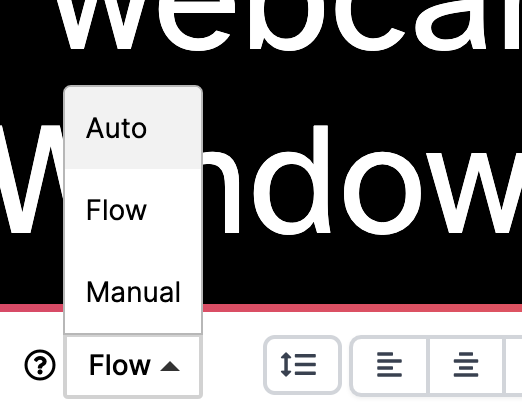
Auto
Auto mode automatically scrolls the text at a constant pace. As the presenter reads from the script, you may find it necessary to adjust the speed on the fly — you can change the speed with the Auto speed slider, the number keys, or the +/= and - keys on your keyboard.
Auto mode is suitable for most situations and is most reliable in situations such as live talks, public speaking or recording videos.
Flow
Flow mode enables you to scroll the text as you speak. Speakflow uses your device's microphone to detect your words as you talk, then scroll the word into view as you read your script. If you are silent for 30 seconds, the mode will automatically stop listening.
Manual
Manual mode will scroll the text as you physically use a mouse to scroll on a laptop, or your finger to scroll on a phone or tablet. This method is most useful when combined with our Remote device syncing feature. You can manually scroll multiple devices at once.
The method is useful in situations where you want full control over the scrolling, without it scrolling at a constant pace.
The method is useful in situations where you want full control over the scrolling, without it scrolling at a constant pace.
Free signed-in accounts have a monthly Flow allowance. Check the remaining time shown in the teleprompter. This allowance applies to Flow, not Auto or Manual scrolling. Plans with unlimited Flow remove the monthly allowance; an individual Flow session still has a two-hour limit. Anonymous demos can have different limits.
Try a mode
- Open a script and choose a mode in the presentation bar. On a phone, open Settings to find the mode controls.
- Press Start. In Flow, allow microphone access and read the first paragraph aloud. In Auto, adjust the slider until the text moves at a comfortable pace. In Manual, scroll with your mouse, trackpad, or finger.
- Press Stop when you finish. You can change modes and try the same paragraph again.
For Flow, choose your script language and allow microphone access before you start.