Trouble with recording? Here are the most common problems and how to fix them.
How much can I record?
Recording is included in paid plans, with total stored recording time depending on your plan: Plus includes 1 hour, and Pro includes 2 hours. The Basic and Free plan do not include video recording or storage.
At your limit, you'll see "Recording Limit Reached" — delete videos you no longer need, or upgrade for more time.
The camera shows a black screen
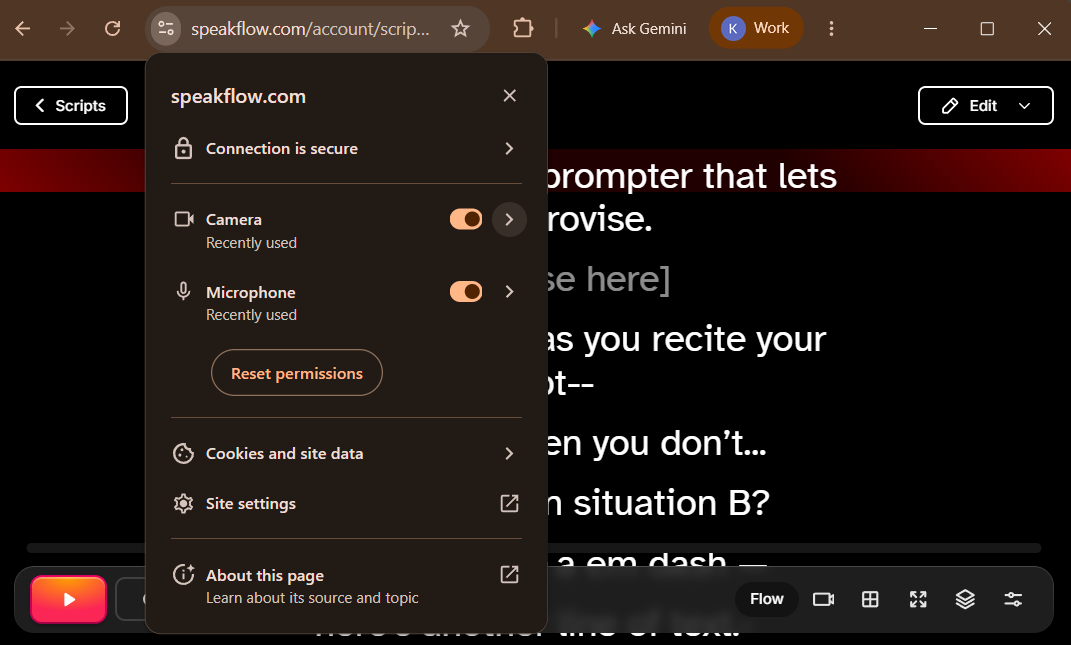
A black preview almost always means another app is holding your camera, or the browser doesn't have permission to use it. Screenshot 2026-07-22 110843.png99.06 KB
Close other apps that use the camera — Zoom, Teams, OBS, Photo Booth, and similar apps can hold the camera exclusively. Speakflow is designed to share the camera politely, but some apps won't let go.
Check browser permissions — click the camera icon in your browser's address bar and make sure camera access is allowed for speakflow.com.
Check system permissions — on Mac, System Settings > Privacy & Security > Camera must allow your browser. On Windows, Settings > Privacy > Camera.
Unplugged your usual camera? If a previously selected camera isn't connected, Speakflow automatically falls back to your default camera — but you may need to refresh the page.
Restart the browser after changing any permission.
If you're on Safari, try Chrome — it has the most reliable recording support.
My recording stopped in the middle of a take
Recordings upload to Speakflow as you record. If your internet connection fails repeatedly during a take, Speakflow stops the recording on purpose rather than save a corrupted video.
Use a stable connection — wired or strong Wi-Fi. Uploading while recording needs consistent bandwidth, especially at higher quality.
Don't close or navigate away from the tab while recording or while "your video is still uploading" — leaving the page cancels the upload.
If you see "Upload stalled before processing could finish. Please check your library before recording again." — part of the upload didn't make it. Check your Videos library first: the take may still be there. If not, re-record on a better connection.
Only my first take saved
Each take uploads right after you stop recording. Give each take a moment to finish — you'll see its processing status — before starting the next one. Recording again immediately, before the previous take finishes uploading, can interfere with it.
If a take is missing from your library, it most likely failed to upload. The video page will show an error message if processing failed.
Error messages and what they mean
"No video data was uploaded. Please re-record and try again." — the recording never sent any video, usually a camera or connection problem at the start. Check the camera steps above and try again.
"Video upload was abandoned. Please re-record and try again." — the upload was interrupted (closed tab, lost connection) before finishing.
"Video processing timed out. Please re-record and try again." — processing got stuck on our end. Re-record, and contact us if it happens twice.
"Recording failed - please try again." — a general failure; refresh the page and try again.
My video quality is lower than I expected
Speakflow records at up to 1080p (Full HD). A few things affect what you actually get:
Your camera and other apps — if another app (like Zoom) is using the camera at a lower resolution, the recording follows suit. Close other camera apps for the best quality.
Your device's processing power — recording quality adjusts automatically to what your device can handle smoothly. Phones and lower-powered laptops record at a moderate quality to avoid dropped frames.
4K is not currently supported for in-browser recording. If you need 4K, record with a dedicated camera app and upload the file to Speakflow.
Still stuck?
Email us at team@speakflow.com with your browser, device, and roughly when the recording happened — we can look up what went wrong on our end.
Ready to try Speakflow?
Write a script, hit record, and read naturally. Free to start.