Learn how to update your account, billing info, invoices and more.
My profile
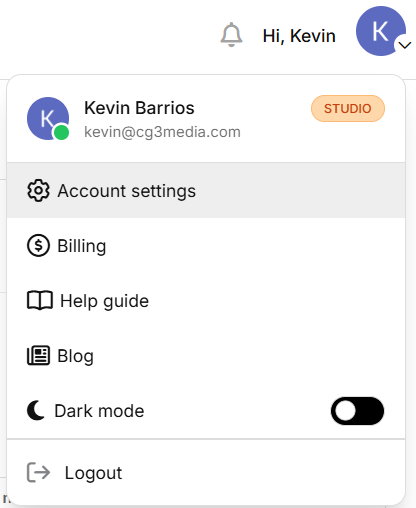
Click your profile picture in the bottom left of the main sidebar and then click "Account settings". Screenshot 2026-07-16 131928.png32.37 KB
Changing Your Password
On this page, you'll see the spaces to change your password. To do so, you must enter your current password and then enter your new password twice.
If you created your account with Google Sign in, please reach out to team@speakflow.com directly.
Canceling Your Subscription
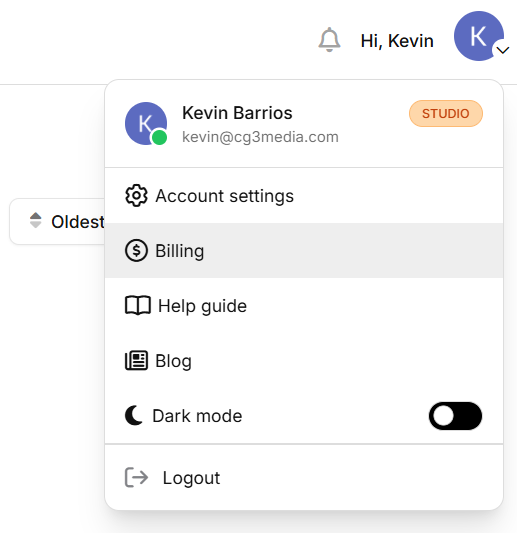
Click your profile picture in the bottom left of the main sidebar and then click "Billing" from the dropdown.
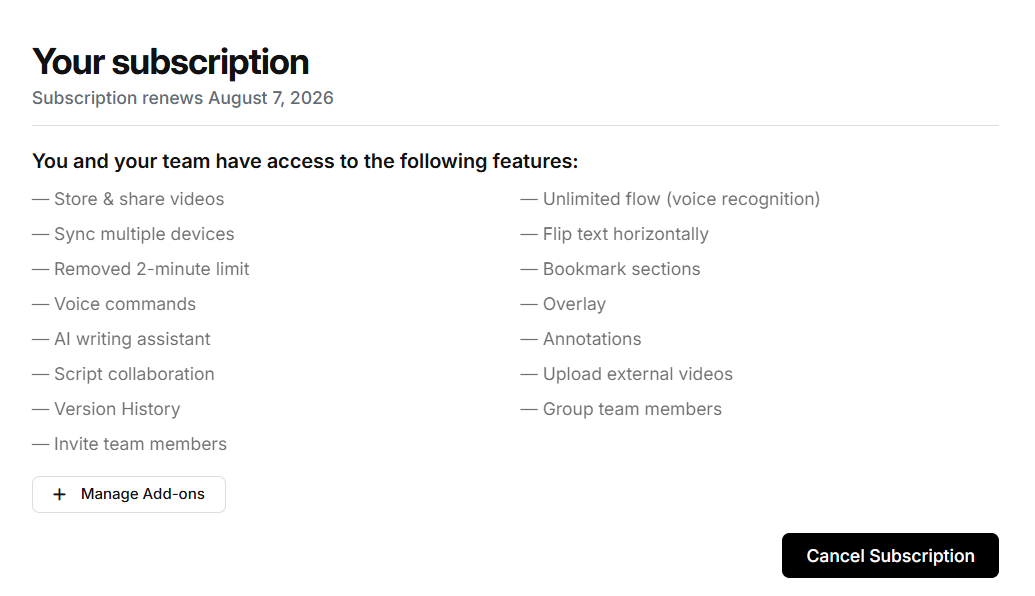
Once on this page, scroll to the bottom, and you'll see a link that says 'Cancel Subscription.'
speakflow-feature-list.png75.21 KB
Deleting Your Account
You may permanently delete your account from the "Account Settings" page.
Note: If you have a paid account, you must cancel your subscription before you can delete your account.
Once on this page, scroll to the bottom and you'll see a link to permanently delete your account. When you delete your account, all content associated with your account is also permanently deleted.
Updating Your Billing Information
To update your account and billing info first, click your profile picture, then "Billing" from within the dropdown menu.
Screenshot 2026-07-16 125139.png37.1 KB
Note: We partner with Stripe for a simplified billing experience.
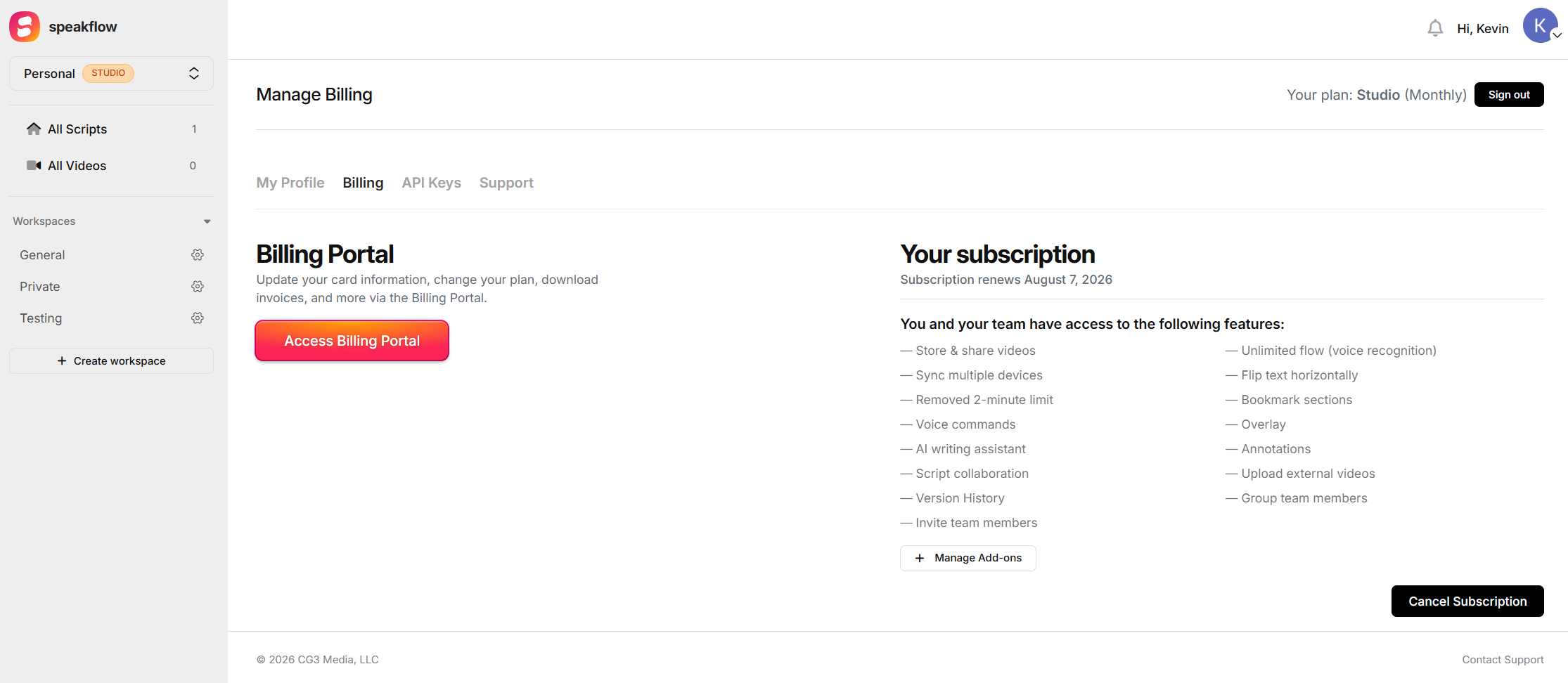
Updating Your Billing Info (Address, Access Invoices, Card Info, etc)
You can update your billing information, like your address and card information, and even access your invoices in your Billing Portal (powered by Stripe). You'll also be able to see what features are included with your current subscription.Screenshot 2026-07-16 125157.png171.45 KB
Ready to try Speakflow?
Write a script, hit record, and read naturally. Free to start.