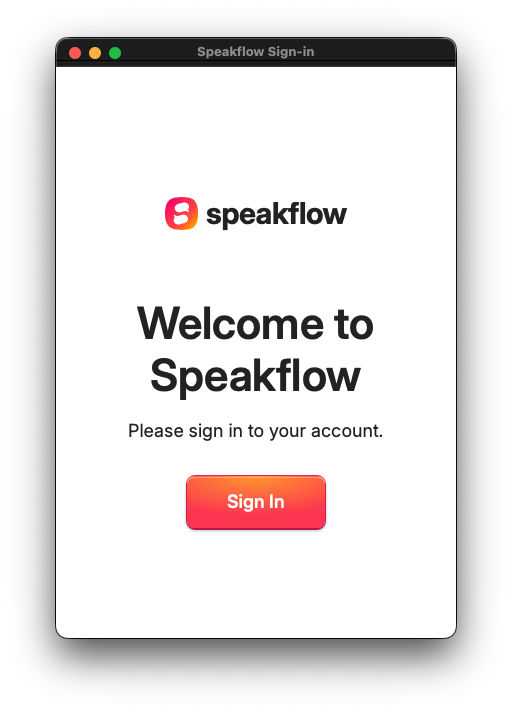
2. Click Sign in. Your browser opens to log in to your Speakflow account.Screenshot 2026-05-21 at 6.55.36 PM.png99.58 KB
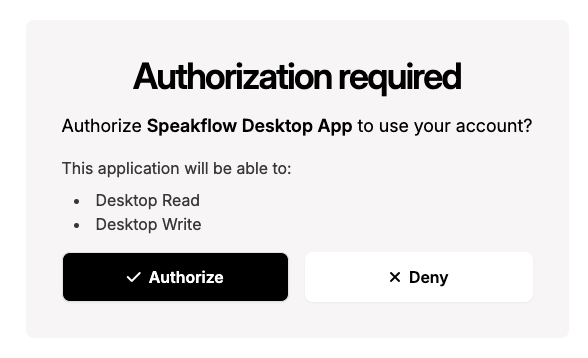
3. After logging in, your browser will ask to open Speakflow — confirm, and you'll be returned to the app, signed in.Screenshot 2026-05-21 at 6.55.43 PM.png30.56 KB
You stay signed in for an extended period, so you won't need to log in every time you open the app. If you don't have an account yet, you can sign up free.
Open a script
Your scripts, folders, and labels are the same ones you use on the web. Once signed in, pick any script from your library and it opens in the teleprompter window. Changes you make on the web show up in the desktop app, and vice versa.
The floating window
The desktop window is designed to sit over your other apps while you present:
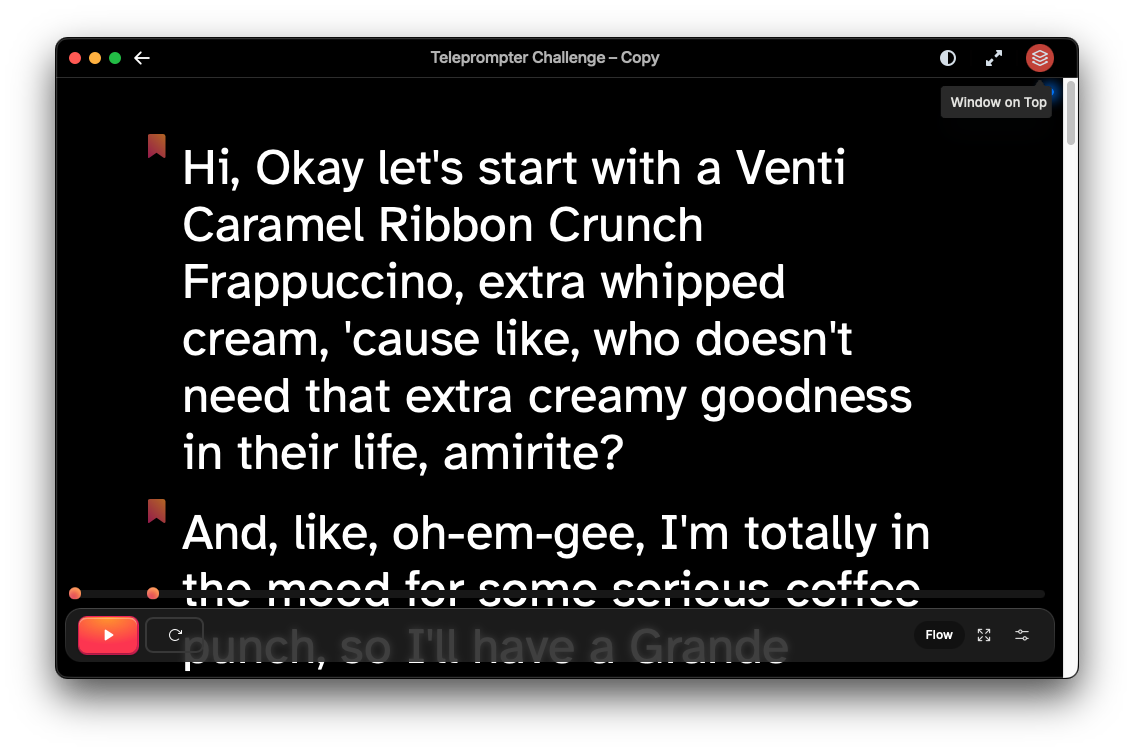
• Always on top — It stays above other windows by default. When this is activated, even if you click to focus on other windows, the Speakflow Desktop App will remain on top of all other windows.Screenshot 2026-05-21 at 6.49.40 PM.png132.43 KB
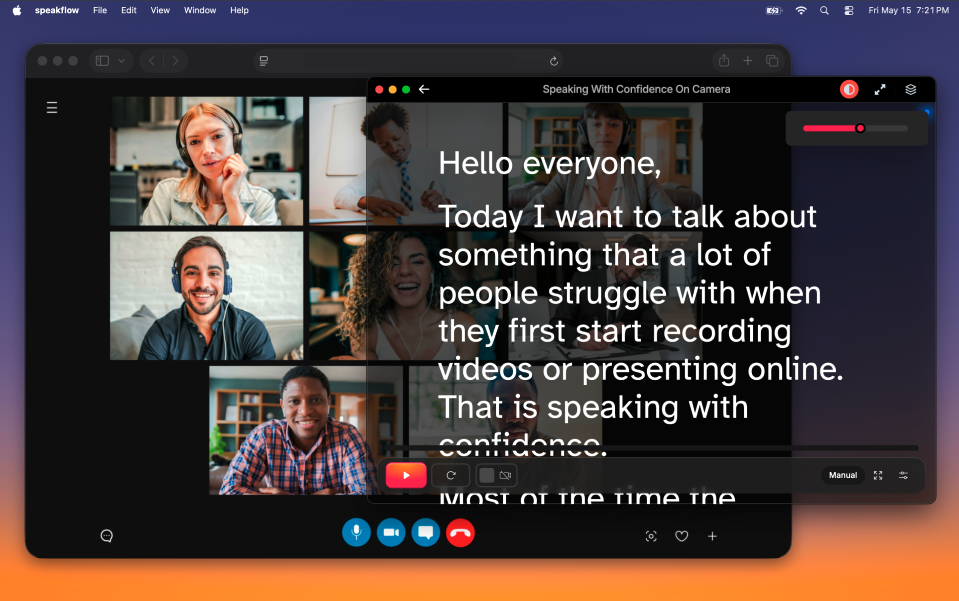
• Opacity — Lower the opacity to see through the script to whatever is behind it. Useful when reading over a video call or slides. Screenshot 2026-05-21 at 6.52.09 PM.png614.44 KB
Scrolling your script
Speakflow supports the same scroll modes as the web teleprompter:
• Flow mode — The app follows along as you speak and scrolls automatically to keep your current line in view.
• Auto mode — The app scrolls automatically and you control the speed using keyboard shortcuts (1-9).
• Manual mode — You control the scroll speed yourself.
You can switch modes and adjust scroll speed, text size, alignment, line height, and width from the teleprompter settings.
Note on settings: Teleprompter settings are saved per workspace, not per script. Adjusting them applies across your scripts in that workspace and syncs with the web app.
Ready to try Speakflow?
Write a script, hit record, and read naturally. Free to start.