The Complete Guide to Free Online Teleprompters (2026)
A free online teleprompter lets you read scripts directly in your browser.
video_tools_02.png1.91 MB Whether you're recording YouTube videos, hosting webinars, or delivering virtual presentations, a teleprompter can transform your on-camera delivery. The good news? You don't need expensive hardware or software downloads to get started.
In this guide, you'll learn everything about free online teleprompters: how they work, the best options available, and how to use them to create polished, professional content without breaking your budget.
confidence-monitor.png2.04 MB
What Is a Free Online Teleprompter?
A free online teleprompter is a browser-based tool that displays your script on screen while you record video or deliver a presentation. Unlike traditional teleprompters that require dedicated hardware or downloaded software, online teleprompters work directly in your web browser on any device.
How it works:
Paste or type your script into the teleprompter
Adjust the scroll speed to match your speaking pace
Position the teleprompter window near your camera lens
Read your script while maintaining eye contact with viewers
The result? You deliver your message clearly and confidently, without memorizing scripts or constantly looking away from the camera.
Why Use an Online Teleprompter?
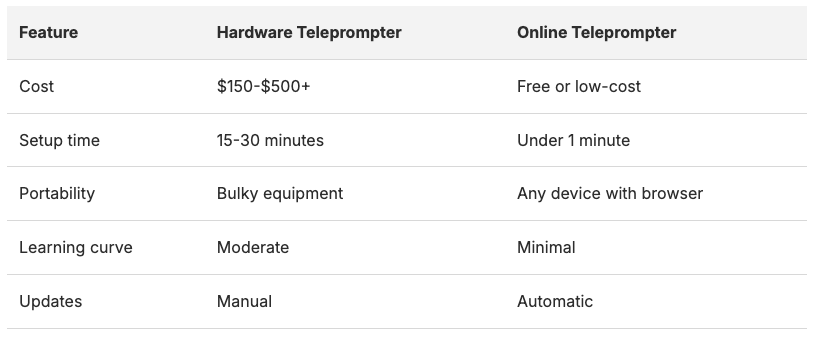
Benefits Over Traditional Teleprompters
Screenshot 2026-01-29 at 3.48.58 PM.png32.17 KB
Who Benefits Most
Content creators: YouTubers, TikTokers, and podcasters who record talking-head videos regularly.
Business professionals: Anyone delivering virtual presentations, training videos, or sales demos.
Educators: Teachers and trainers creating online courses or live virtual lessons.
Public speakers: Presenters who want confidence monitors for webinars and virtual events.
Live streamers: Gamers and creators who need to read announcements, sponsor messages, or viewer questions.
How to Use a Free Online Teleprompter (Step-by-Step)
Step 1: Prepare Your Script
Before loading your script into the teleprompter, format it for easy reading:
Use short paragraphs (2-3 sentences max)
Increase font size for comfortable reading
Add visual breaks between sections
Mark emphasis with bold or color coding
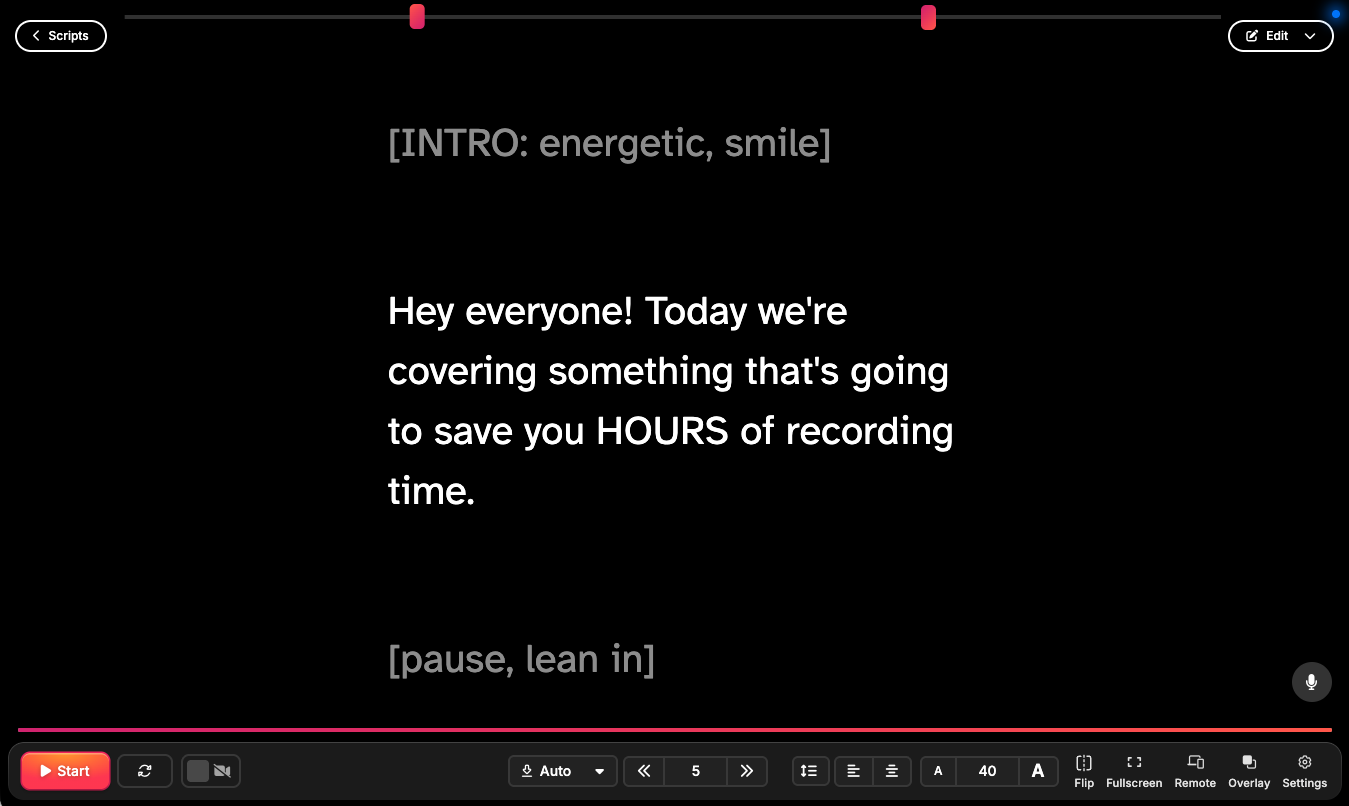
Include timing cues if needed (pause here, emphasize this)
Pro tip: Write for the ear, not the eye. Read your script aloud before recording to catch awkward phrasing.
Step 2: Set Up Your Recording Environment
Position your teleprompter for natural eye contact:
Place the script near your camera lens - The closer the text is to your lens, the more natural your eye contact appears
Adjust your monitor height so you're looking slightly up or straight ahead
Reduce glare on your screen if recording in bright environments
Test your lighting to ensure you can read the text comfortably
Step 3: Configure Teleprompter Settings
Most free online teleprompters let you customize:
Scroll speed: Match your natural speaking pace (usually 120-150 words per minute)
Font size: Large enough to read from arm's length
Text color and background: High contrast for easy reading
Mirror mode: Flip text if using a beam-splitter setup
Margins: Keep text in the center of your field of view
Step 4: Practice Before Recording
Never hit record on your first read-through:
Do a full practice run at recording speed
Adjust scroll speed based on your practice
Mark any stumbling points in your script
Time your total runtime to ensure it fits your target length
Step 5: Record with Confidence
During recording:
Don't stare at the text - Look at the camera lens, using the script as a guide
Speak naturally - Avoid the "reading voice" by emphasizing key words
Pause between sections - Give yourself natural breath points
Don't stop for small mistakes - You can edit later
eye-contact.png2.04 MB
Free Online Teleprompter Tips for Better Videos
Tip 1: Position Your Script Correctly
The #1 mistake? Placing your script too far from your camera lens.
The fix: Use a browser window positioned directly above, below, or beside your webcam. On external monitors, you can position the window within inches of your lens.
Advanced setup: Some creators use tablet stands or phone mounts positioned directly behind their camera, with the teleprompter app running on the mobile device.
Tip 2: Match Scroll Speed to Your Natural Pace
Average speaking rate is 120-150 words per minute, but yours may vary:
Faster speakers: 160-180 WPM, use faster scroll
Slower, deliberate speakers: 100-120 WPM, use slower scroll
Energetic content: Faster pace with more emphasis
Educational content: Slower pace for comprehension
Pro tip: Most teleprompters let you adjust speed with keyboard shortcuts while recording. Learn these for on-the-fly adjustments.
Tip 3: Don't Read Every Word
Your script is a guide, not a prison:
Paraphrase naturally when a line feels awkward
Add conversational fillers ("you know," "so basically") if they fit your style
Skip sections if you remember them well
Ad-lib transitions between major points
The best teleprompter users sound like they're speaking spontaneously, not reading.
Tip 4: Use Formatting to Guide Your Delivery
Make your script visually guide your performance: Screenshot 2026-01-29 at 3.52.33 PM.png91.5 KB
Tip 5: Practice the First 30 Seconds
Your opening sets the tone. Practice your intro until you can deliver it without reading:
Memorize your hook
Know your first transition
Have your energy level dialed in
Then let the teleprompter guide the rest.
delivery-tips_Header.png2.3 MB
Free Online Teleprompter for Specific Use Cases
For YouTube Videos
Setup: Browser window positioned near your webcam, script broken into short paragraphs with section headers.
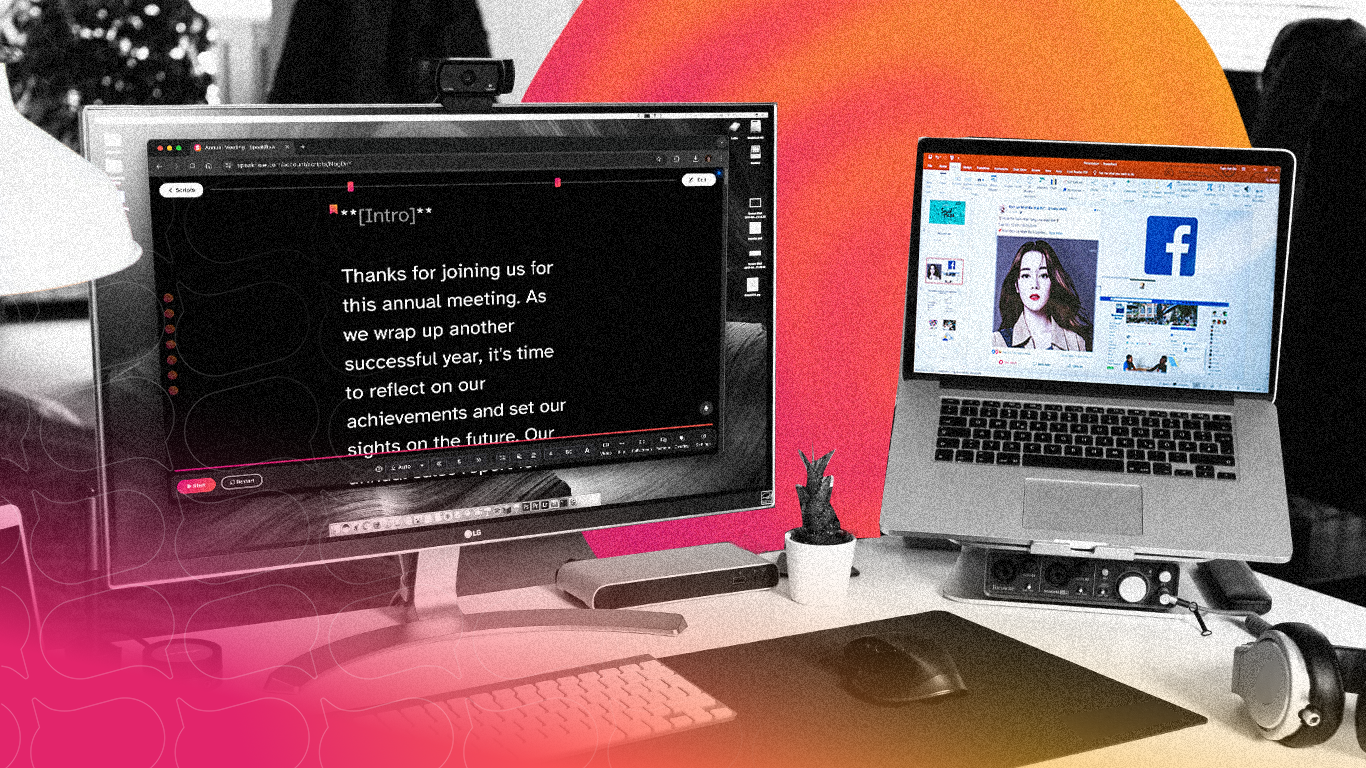
Setup:Speakflow or similar tool in a small window, positioned just above your Zoom camera view.
Tips:
Use a second monitor for your presentation slides
Keep teleprompter on your primary monitor near the camera
Practice switching between reading and engaging with slides
Have talking points, not full scripts, for Q&A sections
For TikTok and Short-Form Video
Setup: Mobile teleprompter app or browser on tablet, positioned behind phone camera.
Tips:
Keep scripts ultra-short (60 seconds = ~150 words max)
Focus on hooks and key points only
Don't over-script - short-form needs energy and spontaneity
Use bullet points rather than full sentences
For Training and Corporate Videos
Setup: Professional lighting, teleprompter positioned for straight-ahead eye contact.
Tips:
Full scripts are appropriate for compliance/legal content
Include pronunciation guides for technical terms
Add timing marks for multi-speaker videos
Review and approve scripts before recording
For Live Streaming
Setup: Second monitor or tablet with teleprompter, positioned in peripheral view.
Tips:
Use for announcements, sponsor reads, and key points only
Don't script entire streams
Update script live if needed (most online teleprompters support this)
Practice seamless transitions between scripted and unscripted moments
Common Mistakes to Avoid
Mistake 1: Speaking in "Robot Voice"
The problem: Reading word-for-word without natural inflection.
The fix: Write scripts that sound like you talk. Read them aloud during writing. Emphasize key words. Vary your pace.
Mistake 2: Scroll Speed Mismatch
The problem: Scroll too fast and you rush; too slow and you sound unnatural.
The fix: Practice with your exact script, at your exact pace, before recording. Adjust until it feels invisible.
Mistake 3: Looking at Text, Not Camera
The problem: Your eyes clearly track back and forth across the screen.
The fix: Position text closer to lens. Use larger font so you can read with peripheral vision. Narrow the width of the text field. Glance at keywords, not every word.
Mistake 4: Over-Scripting
The problem: Every word scripted leaves no room for personality.
The fix: Script key points and transitions. Leave room for natural delivery. Trust yourself to fill in details.
Mistake 5: Skipping Practice Runs
The problem: First take reveals script problems, timing issues, technical glitches.
The fix: Always do at least one full practice run. Identify problems before you hit record.
Frequently Asked Questions
Is a free online teleprompter as good as a hardware teleprompter?
For most creators, yes. Hardware teleprompters (beam-splitter setups) offer the advantage of placing text directly over your lens, but they're expensive ($200-$500+) and bulky. Online teleprompters positioned close to your webcam work excellently for YouTube, Zoom, and social media content.
Can I use a free teleprompter on my phone?
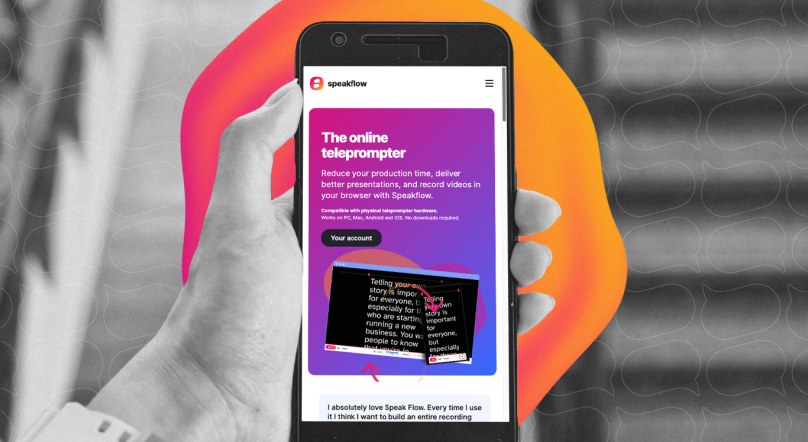
Absolutely. Browser-based teleprompters like Speakflow work on any device, including iPhones and Android phones. You can also use a tablet as your teleprompter while recording with your phone.
How do I avoid looking like I'm reading?
Three key techniques: (1) Position the script as close to your camera lens as possible, (2) Use a larger font so you can read with peripheral vision, and (3) Practice until the script becomes a guide rather than word-for-word instruction.
What scroll speed should I use?
Start at your natural speaking pace (120-150 words per minute for most people) and adjust from there. Most teleprompters let you control speed with keyboard shortcuts while recording.
Can I use a teleprompter for live video?
Yes! Online teleprompters work for Zoom calls, webinars, live streams, and any real-time video. Position the teleprompter window near your camera and use talking points rather than full scripts for live interactions.
Do I need to create an account to use a free teleprompter?
Conclusion: Start Using a Free Online Teleprompter Today
A teleprompter isn't cheating - it's a tool that helps you communicate clearly and confidently. The best speakers, news anchors, and content creators all use them.