Your Android phone is probably the most powerful teleprompter you already own. It's always with you, the screen is sharp, and with the right setup, you can record professional-looking videos without spending a dime on dedicated hardware.
This guide covers everything you need to turn your Android device into a reliable teleprompter -- whether you're recording YouTube videos, TikToks, course content, or business presentations.
Why Use Your Android as a Teleprompter?
Before we get into the how, let's talk about why this makes sense.
Dedicated teleprompter hardware costs anywhere from $150 to $500+. For most creators, that's overkill -- especially when you're just starting out or recording content occasionally. Your Android phone already has:
- A high-resolution display that's easy to read
- Enough processing power to run teleprompter software smoothly
- Built-in connectivity for remote control options
- A camera (if you want an all-in-one setup)
The tradeoff? You'll need to be more intentional about positioning and setup. But once you dial it in, the results are indistinguishable from expensive equipment.
Set Up Your Android Teleprompter
Browser-Based Teleprompter
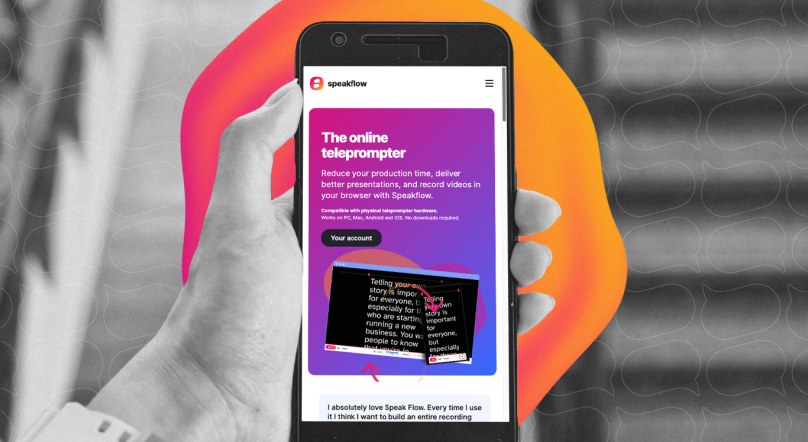
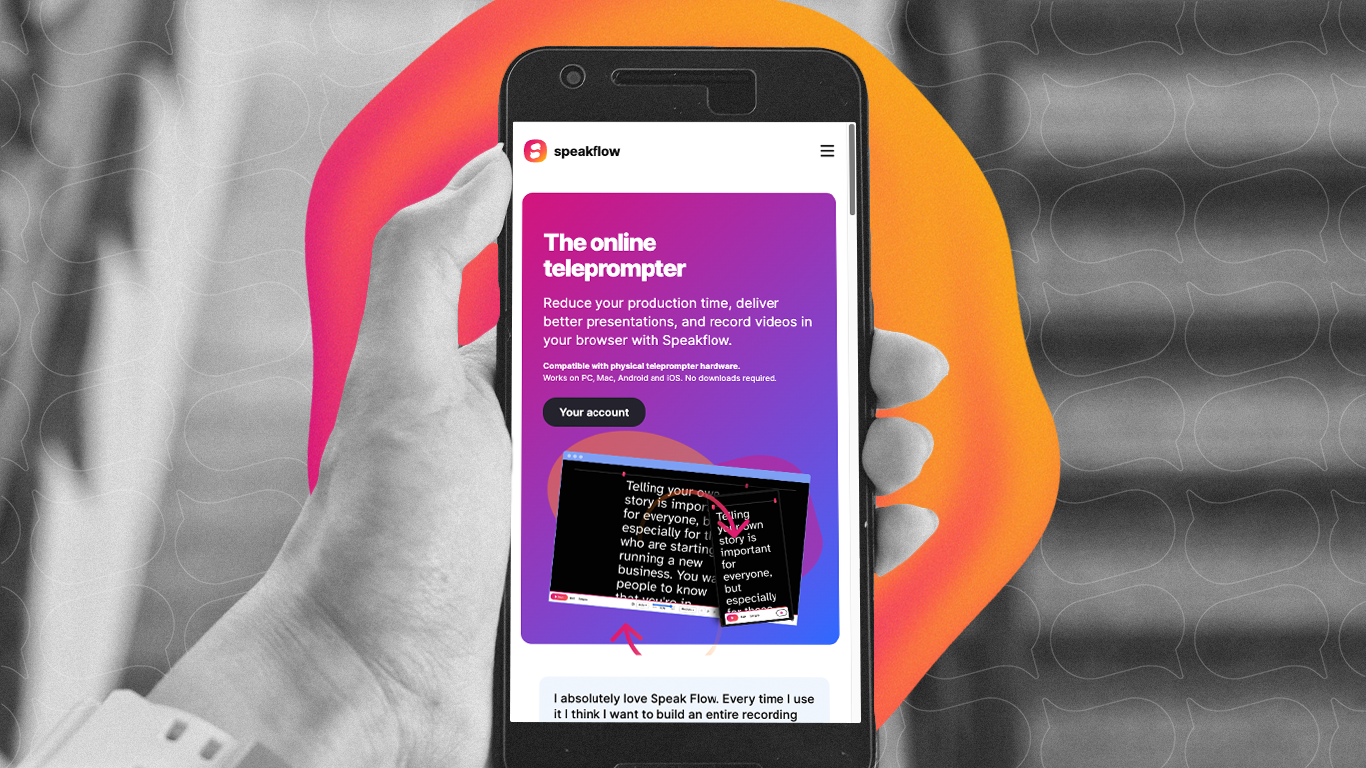
Browser-based teleprompters like Speakflow run directly in Chrome or any mobile browser. No app installation required.
Why this works better for most people:
- Your scripts sync across all your devices automatically
- No storage space used on your phone
- Updates happen instantly -- no waiting for app store approvals
- You can control scrolling from another device using Remote Mode
If you're using a separate camera to record (which we recommend for better quality), this is the way to go. Your phone becomes a dedicated script display while your camera handles the video.
To get started:
- Open Chrome on your Android phone
- Go to speakflow.com/teleprompter
- Paste or type your script
- Tap play and adjust the scroll speed to match your reading pace

Positioning Your Android for Natural Eye Contact
Here's where most people mess up. They put their phone somewhere convenient but end up with videos where their eyes are clearly reading off to the side.
The goal is to position your Android screen as close to your camera lens as possible. When you're reading, you want minimal eye movement between the text and the lens.
If You're Using a Separate Camera
Mount your Android phone directly below (or above) your camera lens. The closer, the better -- ideally within 2-3 inches.
A few ways to do this:
- Phone clamp on your tripod: Many tripods have a secondary mount or you can add a phone clamp attachment ($10-20). Position it right below the camera.
- Velcro strips: Low-tech but effective. Stick velcro on the back of your phone case and on your camera rig. Easy to reposition.
- Teleprompter rig: If you record frequently, a beam-splitter teleprompter ($100-300) lets you put your phone screen directly in front of the lens using a mirror. The camera shoots through it, so your eye contact is perfect.
The farther your phone is from the lens, the more noticeable your eye movement becomes. For most setups, position yourself about 3-4 feet from the camera. At that distance, small eye movements are barely perceptible.
Setting the Right Scroll Speed
Scroll too fast and you'll stumble. Too slow and you'll sound bored, waiting for the next line.
Most people speak at 120-150 words per minute in a conversational tone. For video, aim for the slower end -- around 120-130 WPM. It feels more natural and gives you breathing room.
Start by testing your script with Speakflow's Script Timer to see how long it'll take at different speeds. Then adjust your teleprompter to match.
Pro tip: don't set a fixed scroll speed and hope for the best. Most good teleprompters (including Speakflow) let you adjust speed on the fly or use voice-activated scrolling that follows your pace automatically.
Formatting Your Script for Mobile Screens
Phone screens are narrow. A script that looks fine on your laptop might be unreadable on Android.
A few formatting rules:
- Shorter line lengths: 4-6 words per line is comfortable. Don't make your eyes track across the full width of the screen.
- Bigger font: At least 24pt, preferably larger. You should be able to read comfortably from 3-4 feet away.
- High contrast: White text on black background is easiest on the eyes. Avoid gray-on-gray or anything fancy.
- Break up paragraphs: One thought per chunk. Dense blocks of text are hard to track while you're performing.
If you're writing scripts specifically for teleprompter use, check out our guide on writing video scripts. The formatting makes a real difference in how natural you sound.
Remote Control Options
Tapping your phone to start scrolling isn't ideal -- you'll see the movement in your video, and it breaks your flow.
Better options:
- Remote Mode: With Speakflow, you can control your Android teleprompter from a laptop, tablet, or second phone. Scan a QR code to link devices, then start/stop/adjust from anywhere.
- Bluetooth remotes: A small clicker ($15-30) lets you advance the script without touching your phone.
- Foot pedals: If you're sitting at a desk, a USB foot pedal (around $30-50) connected to a nearby laptop can control your script hands-free.
- Smartwatch: Some apps let you control scrolling from your Wear OS watch. Subtle wrist movements are less visible than reaching for your phone.
Common Android Teleprompter Problems (and Fixes)
Screen Times Out
Your phone's display turns off mid-recording because of power saving settings. Go to Settings > Display > Screen timeout and set it to the maximum (usually 30 minutes), or use your teleprompter app's "keep screen on" setting if it has one.
Notifications Interrupt
Nothing kills a take like a text notification popping up. Enable Do Not Disturb mode before every recording session. Better yet, turn on Airplane mode if you don't need internet for your teleprompter.
Glare on Screen
If you're using studio lights, they might reflect off your phone screen and into the camera (especially with beam-splitter setups). Adjust your lighting angle or use an anti-glare screen protector.
Battery Drains Fast
Running a bright screen plus scrolling software will eat your battery. Keep a charger plugged in during longer sessions, or use a power bank mounted nearby.
Sample Setup: Budget Android Teleprompter (~$50)
Here's a complete setup that works great for most creators:
- Your Android phone (any phone from the last 5 years works)
- Phone tripod clamp -- $12-15 on Amazon
- Small tripod or mount -- $15-20
- Bluetooth clicker remote -- $15-20
- Speakflow account -- free for basic use
Total: under $50, assuming you already have the phone and something to record with.
For more budget-friendly ideas, see our complete guide to free online teleprompters.
Getting Comfortable Reading from a Teleprompter
Having the right setup is only half the battle. The other half is learning to read without sounding like you're.. reading.
It takes practice. Your first few recordings will probably feel stiff. That's normal.
A few things that help:
- Practice your script out loud before recording. Twice. Three times. The more familiar you are with the words, the more natural you'll sound.
- Look through the script, not at it. Imagine you're talking to someone standing behind the phone.
- Mark emphasis points in your script (bold key words, add pause markers). This keeps your delivery from going flat.
- Record yourself reading casually -- without the teleprompter -- then compare. Aim to match that energy.
If you're new to teleprompters entirely, our getting started guide covers the basics of natural delivery.
What's Next
Your Android phone is ready to go. The only thing left is to start recording.
If you don't have a script yet, try Speakflow's Words to Time calculator to figure out how long your video needs to be, then write to that length.
And if stage fright is holding you back, you're not alone -- here's how a teleprompter can actually help with that.
Ready to try it? Open Speakflow on your Android and see how it feels. No account required to start.
You can also pair your setup with Speakflow’s Desktop App, which keeps your script on your computer and lets you position it over the apps you’re presenting or recording in.