Used by nice folks at











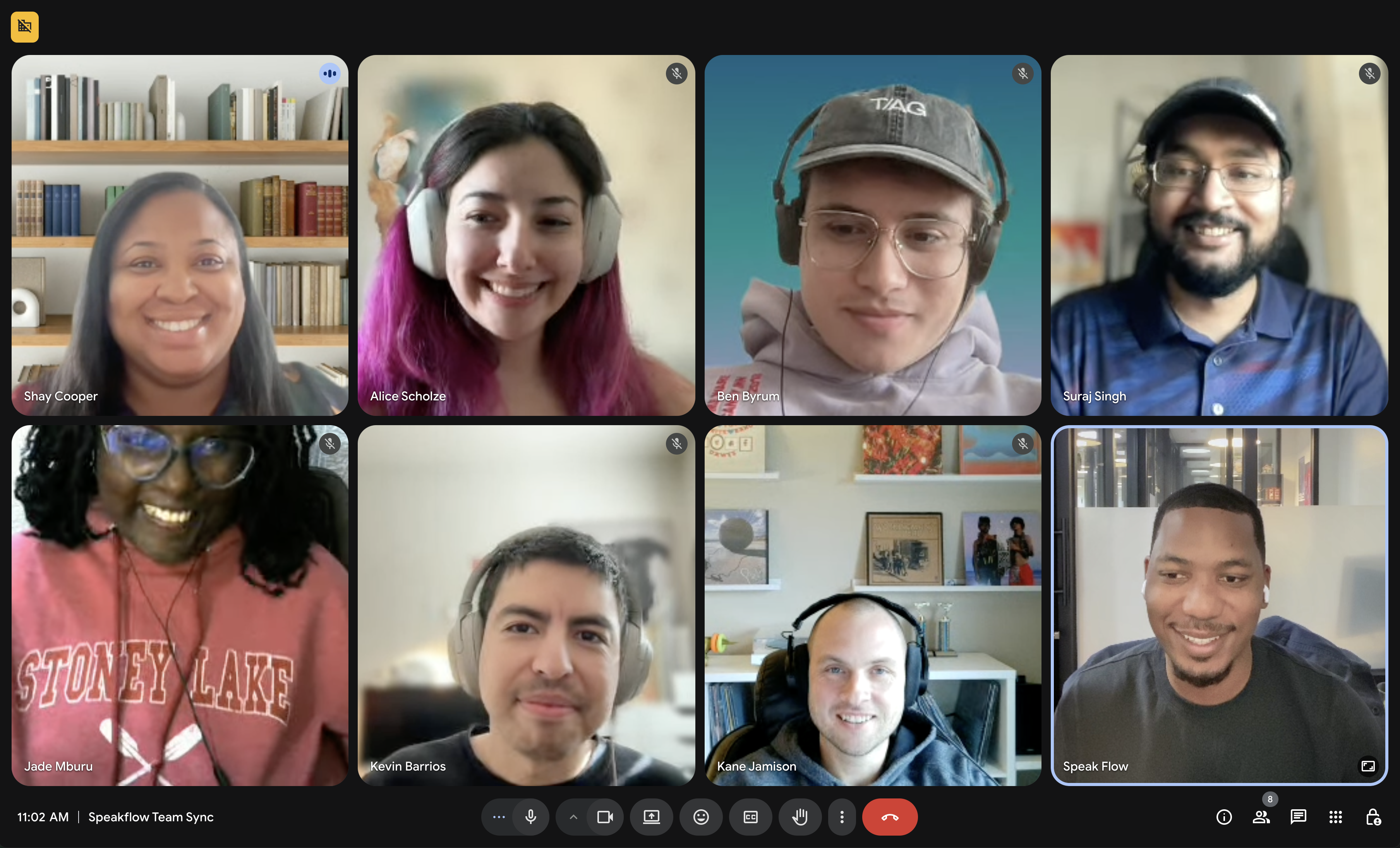
A Zoom teleprompter (or meeting teleprompter) puts your talking points over the call so you can keep eye contact and stay on message. Speakflow’s Desktop App pins a floating script window above Zoom, Google Meet, Microsoft Teams, slides, or whatever you are sharing, with opacity control, resize, and notes that stay out of the share. Browser Overlay does the same idea in your browser: your meeting window sits underneath the script.
Welcome back. Today we're going to walk through how Speakflow keeps you looking natural on camera, even when you're reading from a script. Just speak at your own pace and the words follow along with you.

Welcome back. Today we're going to walk through how Speakflow keeps you looking natural on camera, even when you're reading from a script. Just speak at your own pace and the words follow along with you.
Scroll how you present best: Flow follows your voice, Auto crawls at a set speed, and Manual puts you in control, the same modes as the web teleprompter, including in the Desktop App.
For most meeting workflows, start with the Desktop App. Speakflow’s Overlay docs note that Overlay is being replaced by the dedicated app. Either path keeps the script with you while you watch the room.
Step-by-step: Overlay docs (Zoom, Google Meet, etc.) · Desktop App getting started.
Anyone who presents on video calls and hates sounding like they are reading from a second monitor, or losing their place when they glance at notes. Especially useful for recurring webinars and training when you reuse saved scripts and share them in team workspaces.
Meeting teleprompters in the Vodium class focus on desktop overlay. Speakflow covers that same job, and layers in Flow, a free online teleprompter, mobile and hardware options, recording workflows, and team workspaces. Compare Speakflow vs Vodium or see pricing.
Speakflow has been helping presenters sound natural on camera since 2019, built by an ex-Apple engineer and made in America.
A teleprompter for Zoom keeps your script on screen while you are in a video call, so you can read talking points without flipping between windows. Speakflow does this with the Desktop App (always-on-top, adjustable opacity) or browser Overlay, both designed so your notes stay with you and can stay out of what you share.
Yes. The Speakflow Desktop App is built to sit over the call or window you are using, including Zoom, Google Meet, and Microsoft Teams. Browser Overlay docs walk through Zoom, Webex, and Google Meet. Same idea: keep the script visible to you while you present.
Overlay is Speakflow’s browser mode that shows another window (like your meeting) underneath your script. The dedicated Desktop App is replacing Overlay for most meeting workflows: pin the teleprompter always on top, resize it, lower opacity, and keep notes invisible when you share. Download the Desktop App when you want the meeting-ready experience.
Speakflow’s Overlay and Desktop App are designed so your script can stay invisible to screensharing and screen capture. Your audience sees the call or deck you share; you keep the notes for yourself.
You can try Speakflow’s free online teleprompter in the browser anytime. Overlay (virtual teleprompter) and the Desktop App are included on Plus and Studio plans. Create a free account for saved scripts, then upgrade when you need meeting overlay features.
Flow follows your voice and scrolls the script as you speak. It is available in Speakflow’s teleprompter, including the Desktop App, alongside Auto and Manual modes. On live calls, pick the mode that fits: Flow for natural cadence, Auto for a steady crawl, or Manual when you want full control.
Meeting-focused desktop teleprompters (the Vodium class) also emphasize scripts over Zoom, Meet, or Teams. Speakflow covers that overlay workflow and adds Flow, a free online teleprompter, mobile and hardware-rig options, in-browser recording on paid plans, and shared workspaces when a team needs more than a solo call script. See Speakflow vs Vodium or pricing.
No. Overlay is desktop-only because it uses browser screen-sharing APIs that most mobile browsers do not support. For mobile, use Speakflow in the browser or iOS app with a second screen or hardware teleprompter; for meetings on a laptop or desktop, use the Desktop App or Overlay.
