
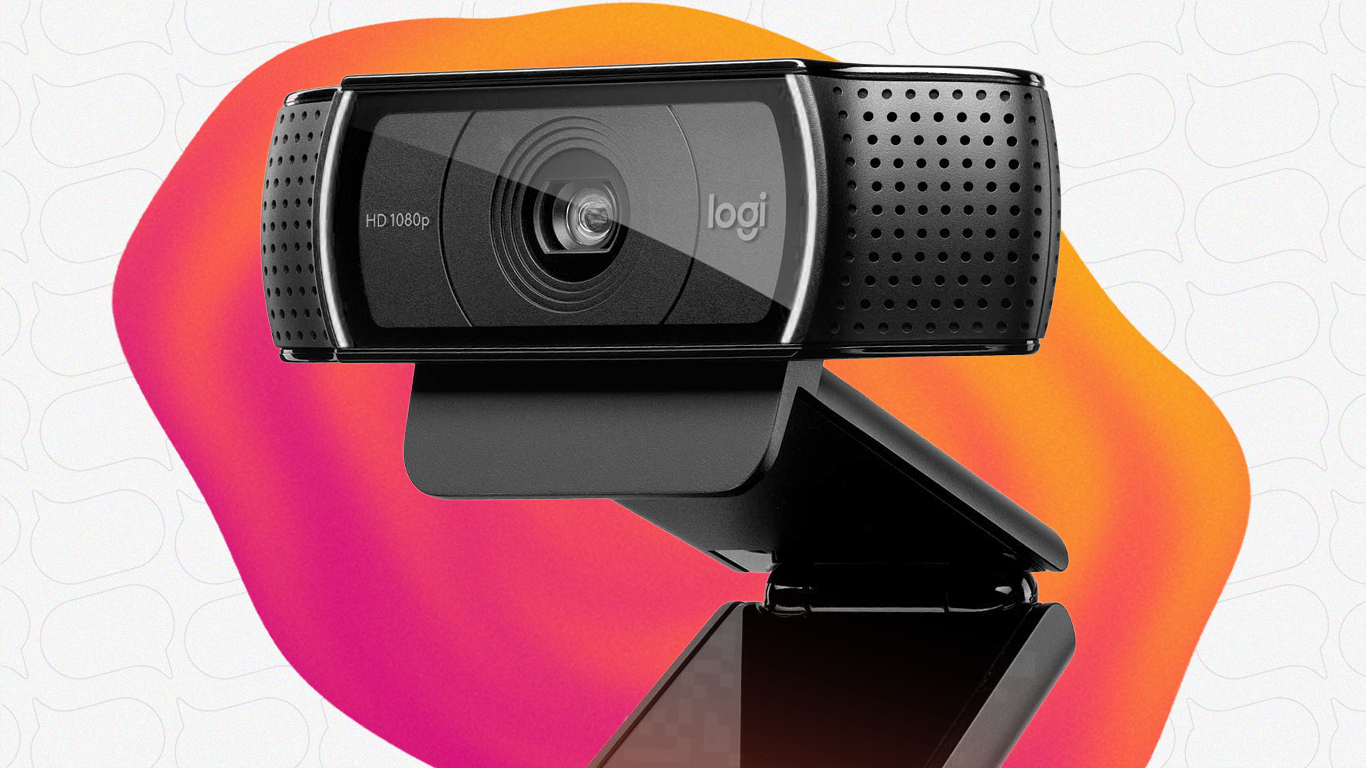
The Logitech C920 and C922 are two of the most popular webcams for video creators - and for good reason. They deliver solid 1080p quality without breaking the bank, making them perfect for anyone getting started with video content or Zoom presentations.
But here's the thing: a webcam alone doesn't make great video. The magic happens when you pair it with a teleprompter setup that lets you read your script while maintaining natural eye contact with the lens.
This guide walks you through setting up your Logitech C920 or C922 for teleprompter use, from positioning to software settings. Whether you're recording YouTube videos, creating course content, or presenting in virtual meetings, you'll have everything you need to look professional on camera.
Why the C920/C922 Works Great for Teleprompter Setups
Before we dive into the setup, let's talk about why these webcams are solid choices for teleprompter use:
- Compact size: The C920 and C922 are small enough to position near your script display without blocking your view
- Wide 78° field of view: You don't need to sit inches from the camera to fill the frame
- Full HD 1080p at 30fps: Sharp enough for professional-looking video (the C922 also supports 720p at 60fps if you prefer smoother motion)
- Autofocus: Keeps you sharp even if you shift slightly while reading
- Affordable: Under $100, leaving budget for lighting or other gear
The key difference between the two? The C922 has better firmware, supports 60fps at 720p, and plays nicer with multi-camera setups. If you're buying new, go with the C922. If you already own a C920, it'll work just fine.
Two Ways to Use a Webcam with a Teleprompter
There are two main approaches to combining your Logitech webcam with teleprompter software like Speakflow:
Option 1: Software Teleprompter on Your Computer
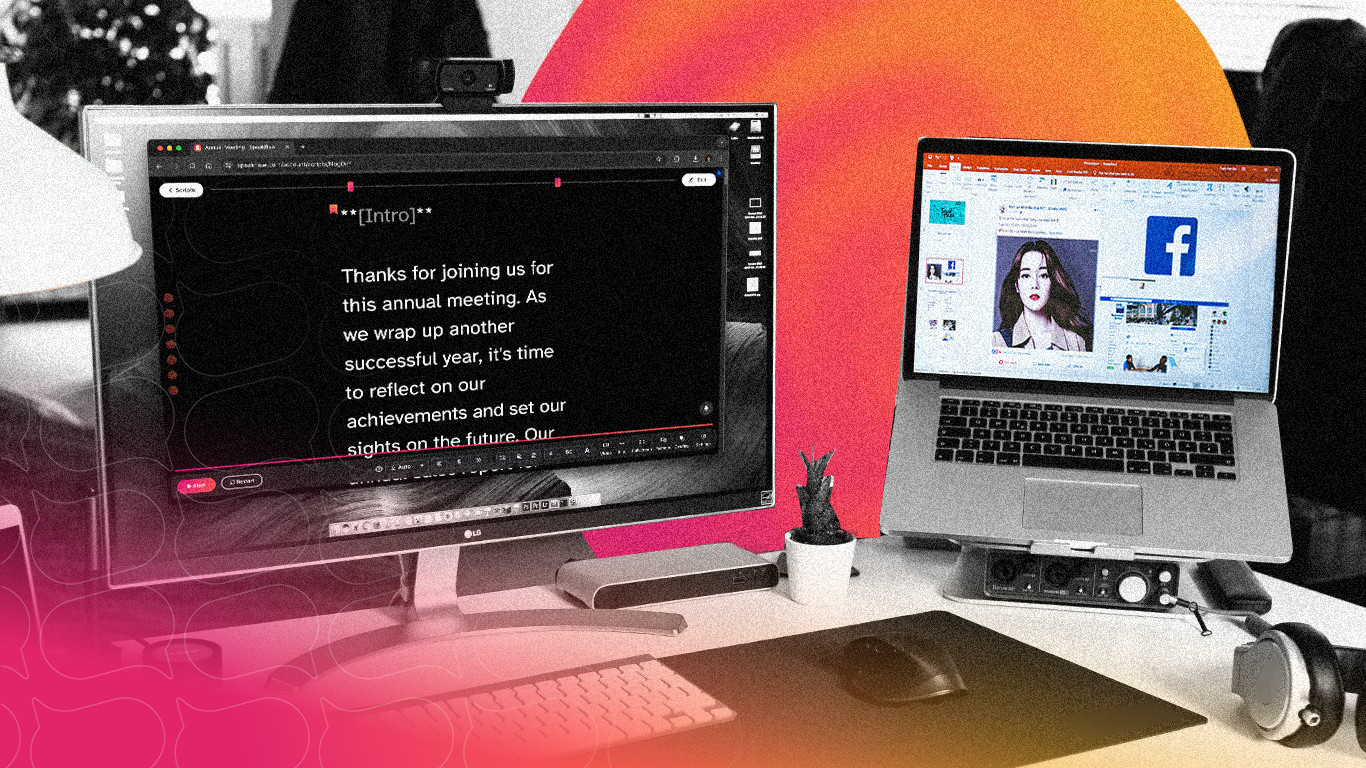
This is the simplest setup. You mount your webcam on top of your monitor (or laptop screen) and use a browser-based teleprompter that displays your script right below the camera lens.
How it works:
- Position your webcam at the top center of your monitor
- Open Speakflow in your browser and load your script
- Resize the teleprompter window so your text appears directly below the webcam
- When you read, your eyes stay near the camera lens, creating natural eye contact
This works because viewers can't tell if you're looking directly at the lens or a few inches below it. As long as the script is close to the camera, it looks like you're speaking to them. For more on this technique, check out our guide on how to read a script while looking into the camera.
Option 2: Dedicated Teleprompter Hardware
For the best eye contact, you can use a beam-splitter teleprompter like the Elgato Prompter or similar device. These place a semi-transparent mirror in front of your camera lens - you see your script reflected on the glass, but the camera sees straight through to your face.
Setting Up Your Webcam Position
Webcam positioning makes or breaks your teleprompter setup. Get this right and you'll look like you're having a conversation with your viewer. Get it wrong and you'll look like you're reading something off to the side.
Height Matters
Position your webcam at eye level or slightly above. This is flattering for most faces and mimics how we naturally look at someone when talking. If you're using a laptop as a teleprompter, you might need to raise it on a stand or stack of books.
Distance from Camera
With the 78° field of view on the C920/C922, you can sit about 2-3 feet from the camera and still fill the frame nicely. This distance also gives you enough room to gesture naturally without your hands flying out of shot.
Script Positioning
Your script should be as close to the camera lens as possible. If you're using a software teleprompter on your screen:
- Position the text in a narrow column directly below the webcam
- Use a large font size so you don't have to squint
- Keep the window width small - you want your eyes to stay in one spot, not scan side to side
Speakflow lets you customize font size, margins, and colors to get this just right.
Optimizing Camera Settings for Video
Out of the box, the C920 and C922 use automatic settings that often produce washed-out, inconsistent video. A few manual tweaks make a big difference.
Access Camera Settings
You can adjust settings through:
- Logitech G Hub or Logi Tune: Logitech's official apps for camera control
- OBS Studio: Right-click your video source → Properties → Configure Video
- Any video app: Most recording software lets you access webcam settings
Turn Off Auto White Balance
Auto white balance is the main culprit behind that washed-out look. Turn it off and set it manually until your skin tone looks natural. The right setting depends on your lighting - warmer for indoor tungsten lights, cooler for daylight or LED panels.
Set Exposure Manually
Auto exposure causes two problems: it makes your image too bright, and it introduces lag as the camera constantly adjusts. Turn it off and lower the exposure until there are no blown-out highlights on your face. You want detail in your skin, not a glowing orb.
Disable Low Light Compensation
This feature tries to brighten dark scenes but adds grain and noise. Turn it off. If your image is too dark, use the gain setting (like ISO on a camera) or - better yet - add more light to your setup.
Lock Focus
Autofocus is usually fine, but if your camera keeps hunting for focus mid-recording, lock it manually. Sit in your recording position, let the camera focus, then switch to manual focus to lock it in place.
Lighting Tips for Webcam Teleprompter Setups
No amount of camera settings can fix bad lighting. The C920 and C922 have small sensors that struggle in low light - they need help.
The basics:
- Face a window (natural light) or use a ring light / key light in front of you
- Avoid overhead lighting that creates shadows under your eyes
- Don't sit with a bright window behind you (your face will be silhouetted)
Even a cheap desk lamp bounced off a white wall can dramatically improve your video quality. Good lighting means you can use lower gain settings, which means less noise and sharper video.
Using Speakflow with Your Logitech Webcam
Here's a quick workflow for recording with Speakflow and your C920/C922:
- Set up your webcam at eye level, positioned at the top of your monitor
- Open Speakflow in Chrome or another browser and load your script
- Position the teleprompter window directly below your webcam, taking up about 1/3 of your screen height
- Open your recording app (OBS, QuickTime, or Speakflow's built-in webcam recorder) and frame your shot
- Adjust script settings - font size, scroll speed, and width until you can read comfortably without moving your eyes much
- Do a test run - record 30 seconds and check that your eyes appear to be looking at the viewer
- Record your video - use Speakflow's remote control feature to start/stop scrolling from your phone if needed
For Zoom meetings or live calls, you can use Speakflow's overlay mode to keep your script visible while the video call runs in another window.
Recording Settings for Best Quality
Once your camera is configured, you'll want to make sure your recording settings match. Here's what works well for the C920/C922:
- Resolution: 1080p for most content. Drop to 720p if you need 60fps for smoother motion (C922 only)
- Frame rate: 30fps is standard for talking-head videos and works great for teleprompter content
- Encoding: If using OBS, hardware encoding (NVENC or QuickSync) reduces CPU load while maintaining quality
- Bitrate: 4000-6000 kbps for 1080p local recordings; lower for streaming
For quick recordings, Speakflow's built-in webcam recorder handles all these settings automatically - just click record and it captures your webcam while scrolling your script.
Common Issues and How to Fix Them
Problem: You look like you're reading
Fix: Move your script closer to the camera lens. Also, practice reading in "chunks" - look at a phrase, then deliver it to the camera, rather than reading word by word. Some people find it helpful to rehearse the script out loud a few times before recording so the words feel familiar.
Problem: Your face is too dark or too bright
Fix: Turn off auto exposure and adjust manually. Add more light to your face if needed.
Problem: Video looks grainy
Fix: Lower your gain setting and add more ambient light. The C920/C922 sensors need good lighting to produce clean footage.
Problem: Camera keeps refocusing
Fix: Lock focus manually after positioning yourself in frame.
Problem: Colors look wrong
Fix: Turn off auto white balance and dial it in until skin tones look natural. If you're mixing light sources (window + desk lamp), pick the dominant one and set white balance for that.
Problem: Webcam settings reset after reboot
Fix: This is a known quirk with some Logitech drivers. Use OBS's video filters to apply color correction that persists, or re-apply settings each session. Logitech G Hub sometimes preserves settings better than older Logitech software.
What About Using Your Webcam with a Second Monitor?
If you have a dual-monitor setup, you can dedicate one screen entirely to your teleprompter. Position that monitor directly in front of you at eye level, mount your webcam on top, and you've got a near-professional teleprompter rig without buying specialized hardware.
This works especially well for live presentations where you need to see both your script and other content (slides, notes, chat) on separate screens.
C920 vs C922: Which Should You Choose?
If you're still deciding between these two webcams, here's the quick breakdown:
Choose the C922 if:
- You want 60fps at 720p for smoother motion
- You might use multiple webcams in the future
- You're buying new (the C920 is discontinued)
Stick with the C920 if:
- You already own one
- You found a good deal on a used unit
- 30fps at 1080p meets your needs
Both webcams use the same sensor and produce nearly identical image quality. The firmware improvements in the C922 are nice but not essential for basic teleprompter work. Don't spend extra money upgrading if your C920 is working fine.
Next Steps
The Logitech C920 and C922 are capable webcams that punch above their price when you take time to set them up properly. Pair them with browser-based teleprompter software like Speakflow, dial in your camera settings, add decent lighting, and you'll be recording professional-looking video in no time.
If you're just getting started with teleprompters, start your next script in Speakflow.
You can always upgrade to a dedicated teleprompter setup down the road - your C920 or C922 will work great with those too.
If you need to keep your script in view while you present in a meeting or presentation, you can also download the Desktop App.
You can always upgrade to a dedicated teleprompter setup down the road - your C920 or C922 will work great with those too.
If you need to keep your script in view while you present in a meeting or presentation, you can also download the Desktop App.


