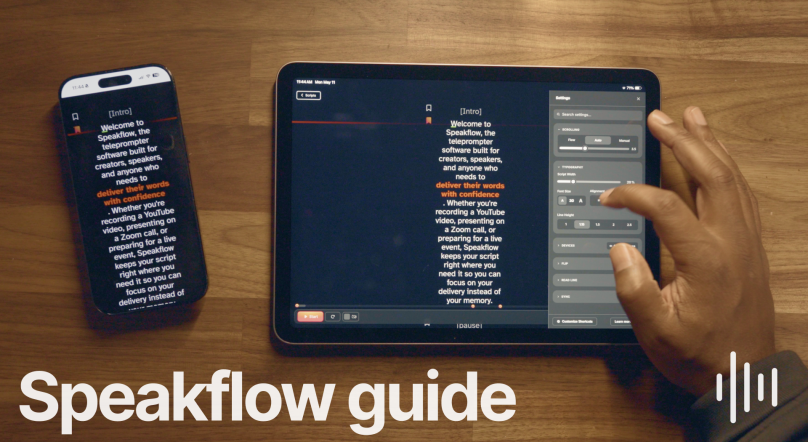
The Speakflow Desktop App lets you pin scripts with adjustable opacity.
The overall goal behind the Desktop App is pretty simple.
Make it easier to stay present while speaking.
Fewer tabs open.
Fewer moments where you’re trying to remember what you were about to say while digging through notes.
Everything stays in front of you instead of scattered across your screen.
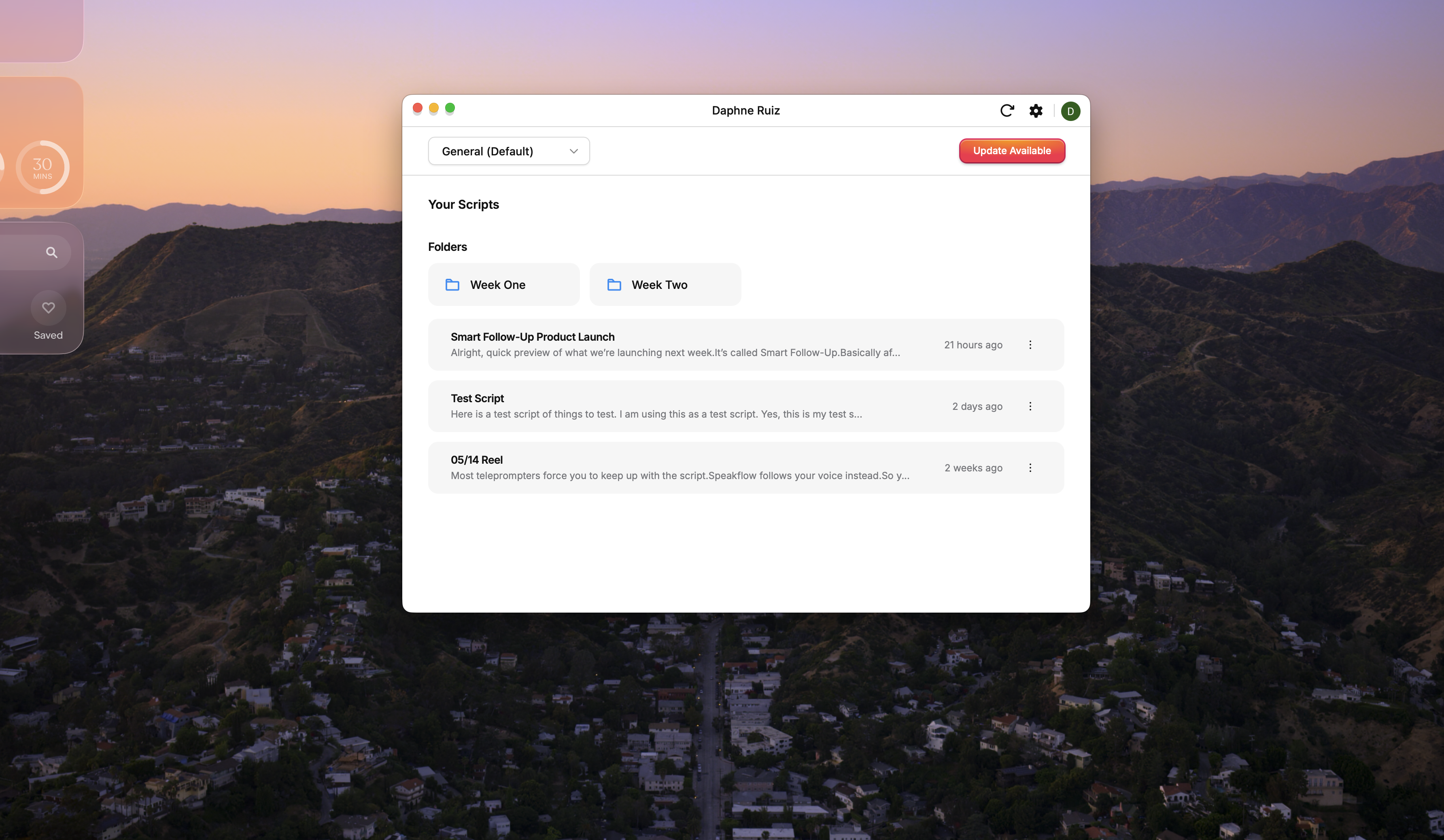
It’s currently in beta, and we’re actively improving it as we receive your feedback. You should consider being one of them and let us know how we can make Speakflow work for you. The Desktop App is available for all paid plans and you can download it here.0.png6.94 MBDownloading the Desktop App also means you can:
Pin Speakflow over meetings and presentations
Resize and reposition the script anywhere on screen
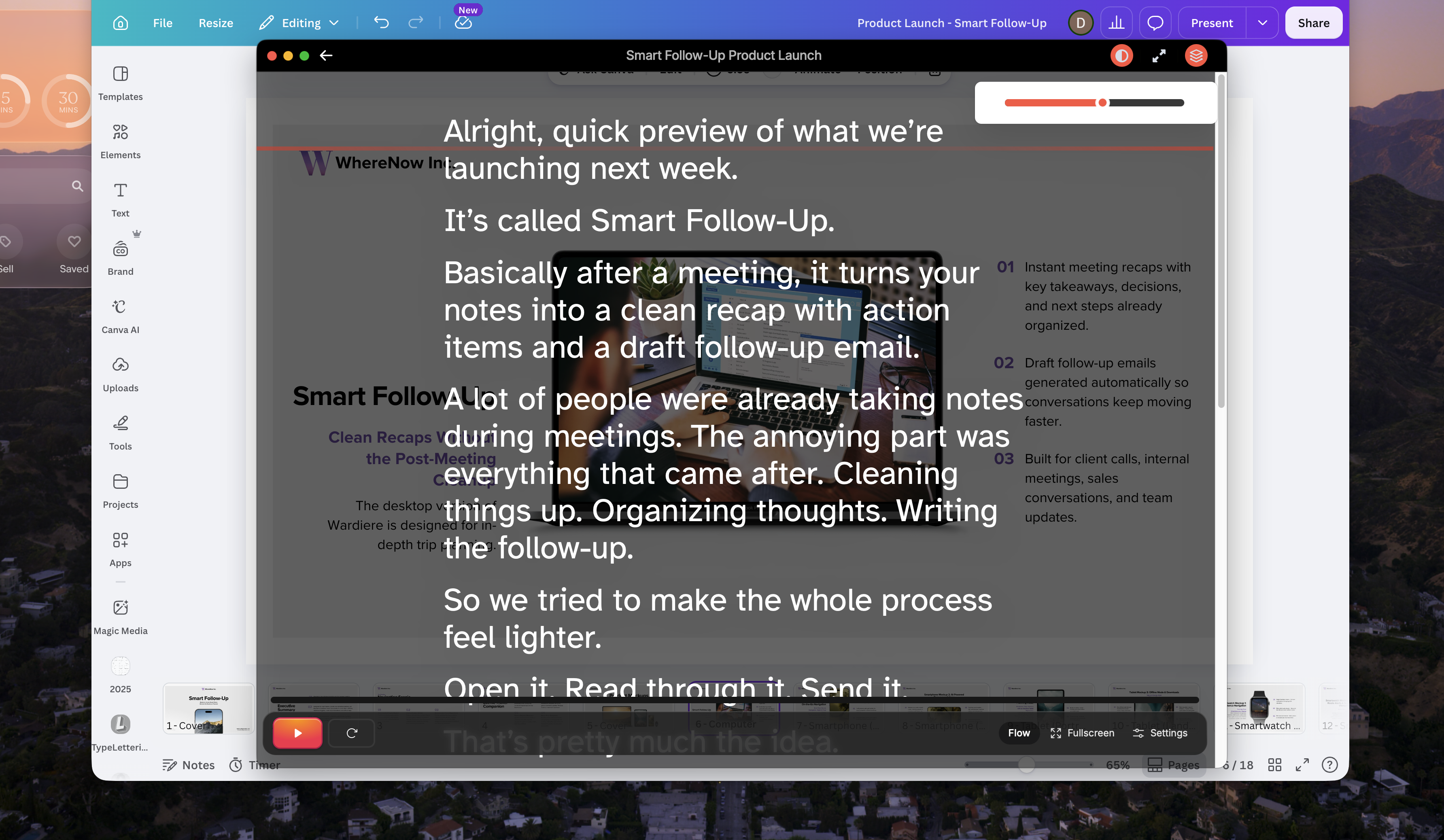
Lower transparency while still seeing your slides underneath your script
Stop constantly digging through tabs while presenting
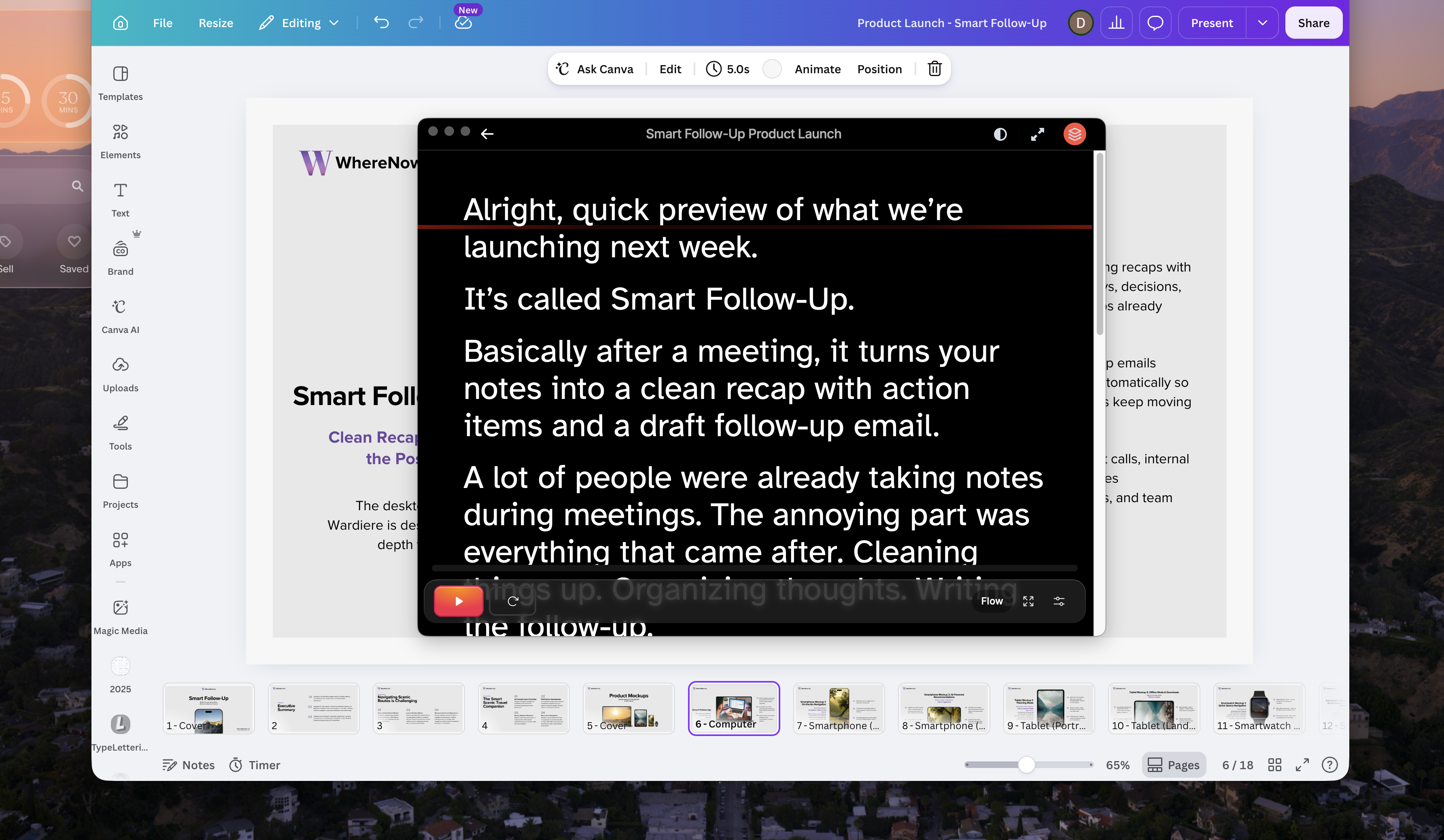
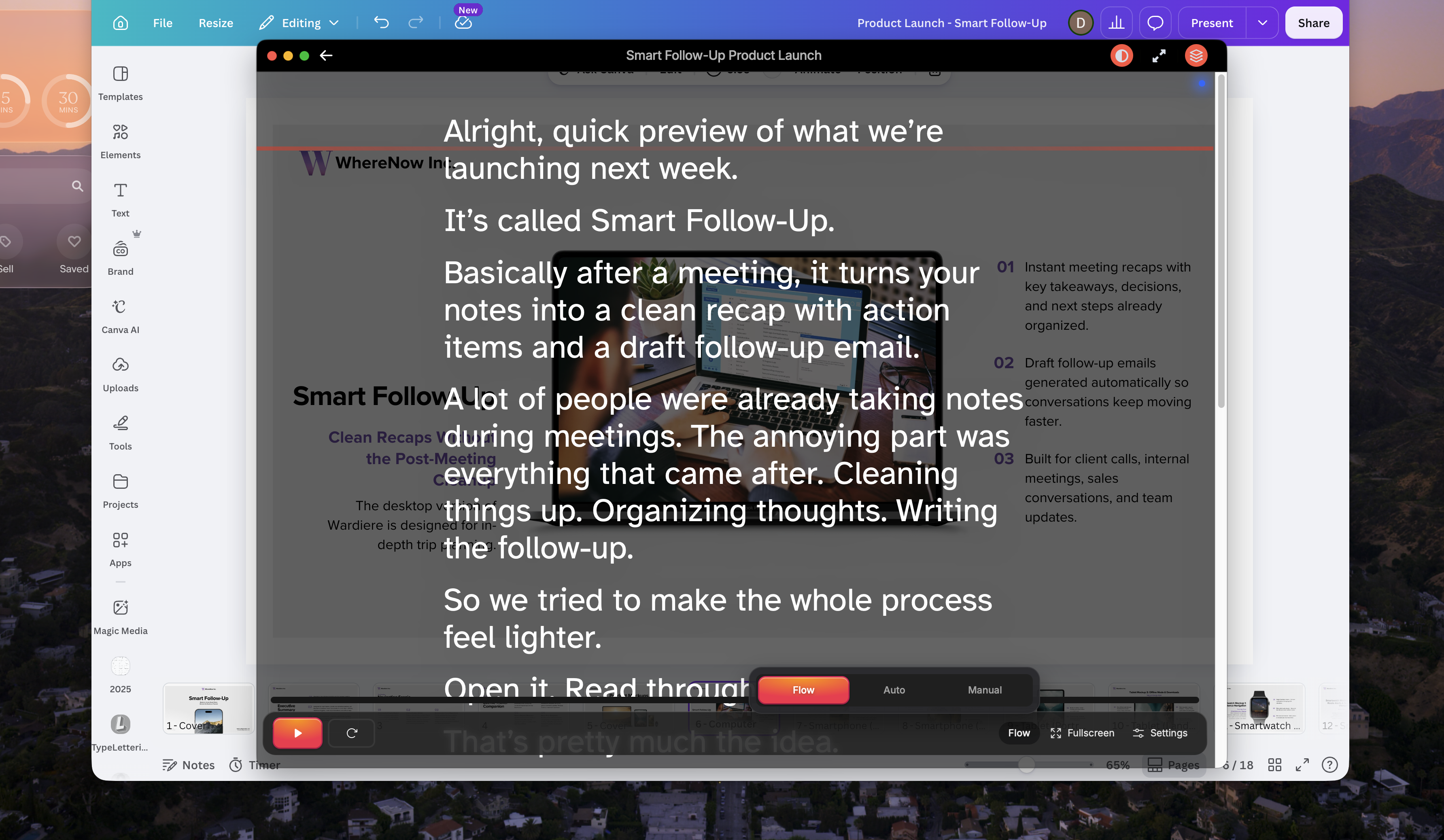
The Desktop App works across Zoom, Google Meet, Microsoft Teams, webinars, recordings, and presentations, and you have the option for it to always stay invisible to everyone else watching.1.png3.14 MBLet’s say you’re launching a new meeting workflow tool called Smart Follow-Up and you’re updating other teams in the company, for example. Once you open a script before the meeting, you can place it directly over your slides and pin it there.
This pinned overlay is one of the biggest differences between the Desktop App and the browser version. Your script stays mounted on top while switching tabs, moving through slides, opening other windows, or screen sharing. All you need to do is click on the icon with a stack of papers on it and your script will always stay on top.
You can comfortably present your update without having to shift your eyes toward some notes or be forced to keep more windows open so you can see your slides and script. 2sf.png2.92 MBYour script’s overlay window can also be resized depending on what you’re doing.
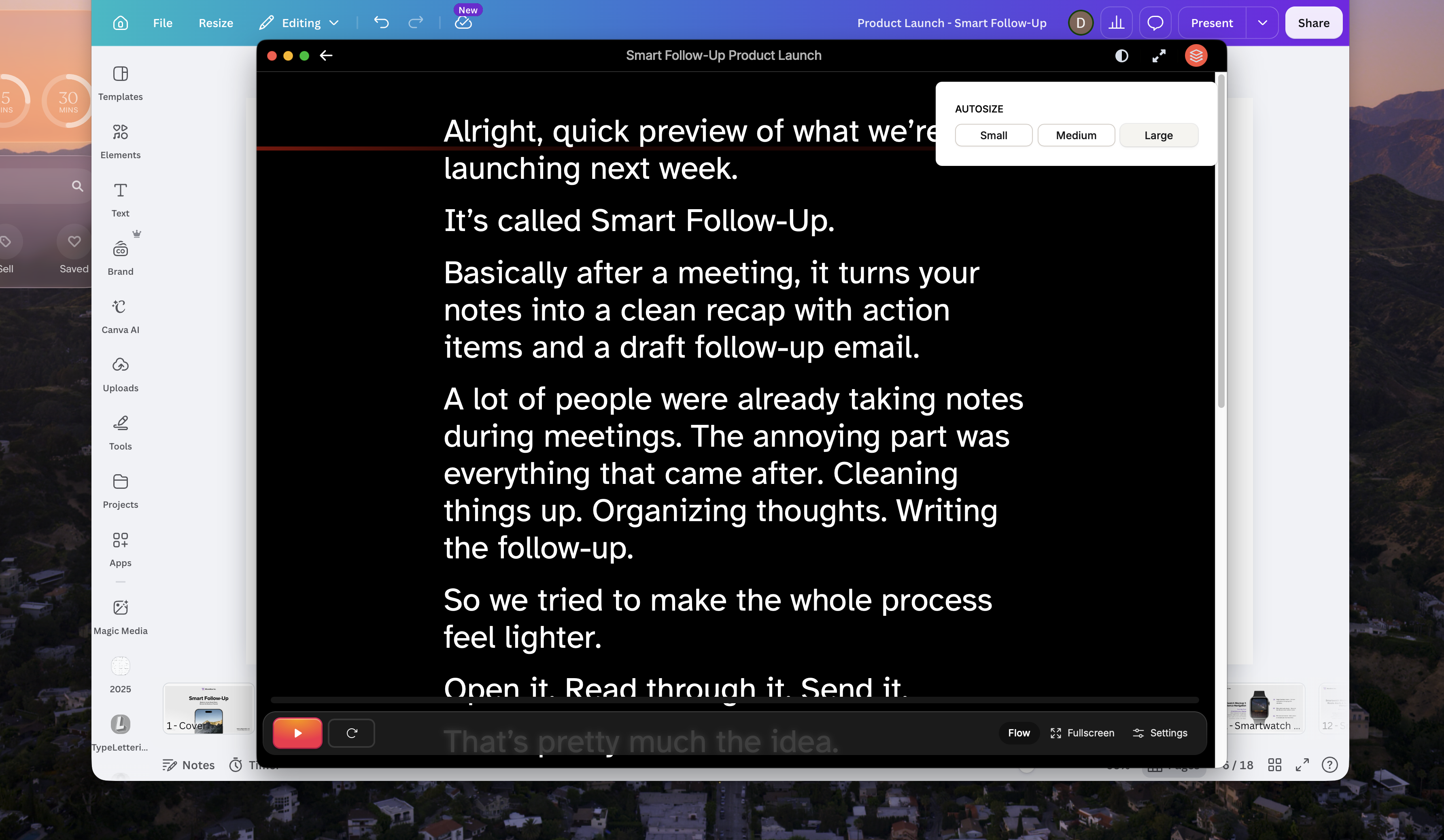
Maybe you want to keep it compact during this meeting or stretch it larger if you need more text visible because that works better for you. You decide. 3sf.png3.91 MBYou can also lower the transparency through the half-circle icon to still see your slides, browser window, or meeting participants underneath the script while you read.4sf.png3.91 MBThe Desktop App also includes multiple scrolling modes depending on how you like to present.
Flow Mode is a very special feature of ours. It follows your voice as you speak, which tends to feel the most natural during longer recordings or presentations where your pacing is going to change constantly. In Flow Mode, you can go off-script and crack a joke because it will only scroll through what’s on your screen.
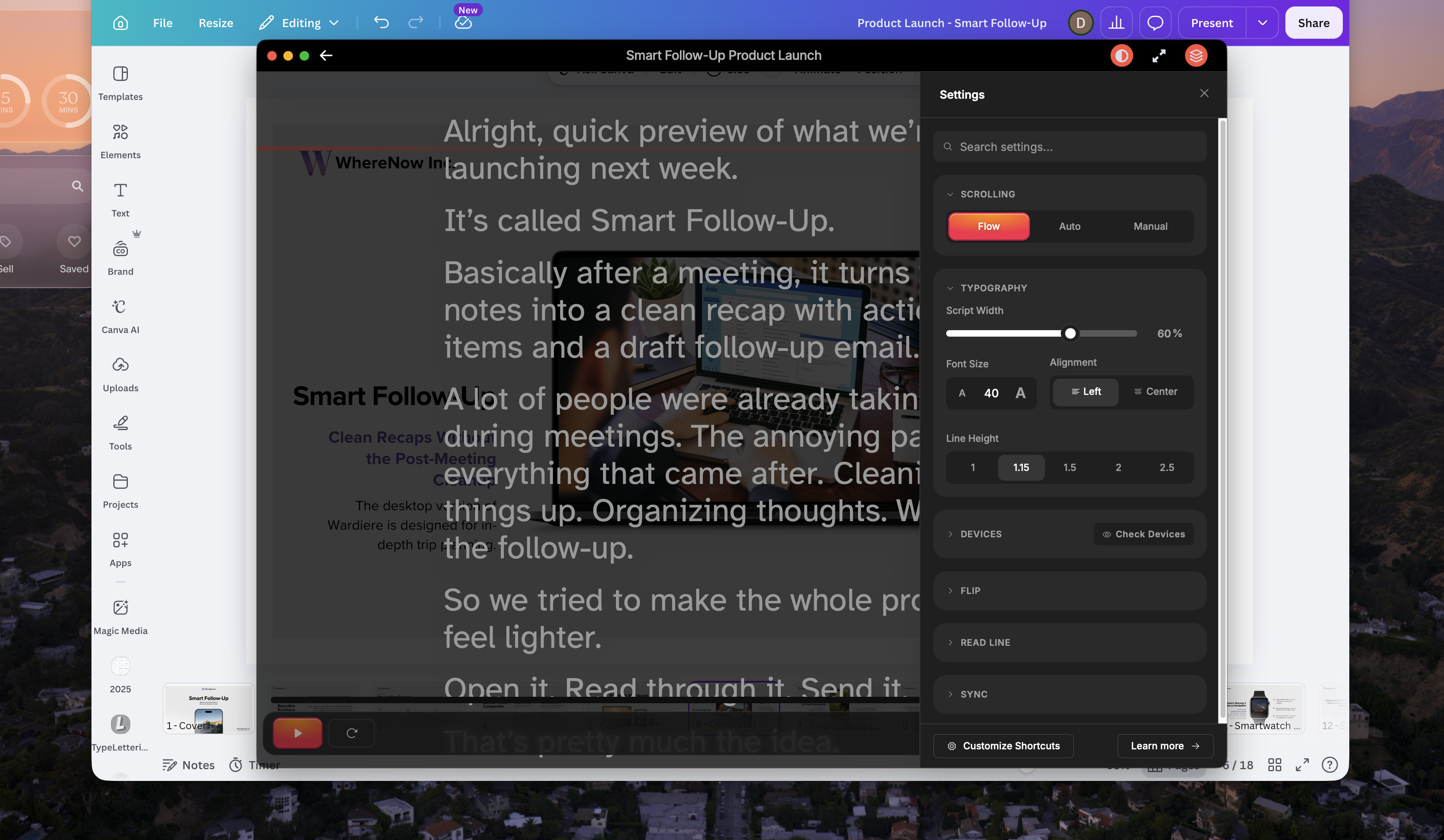
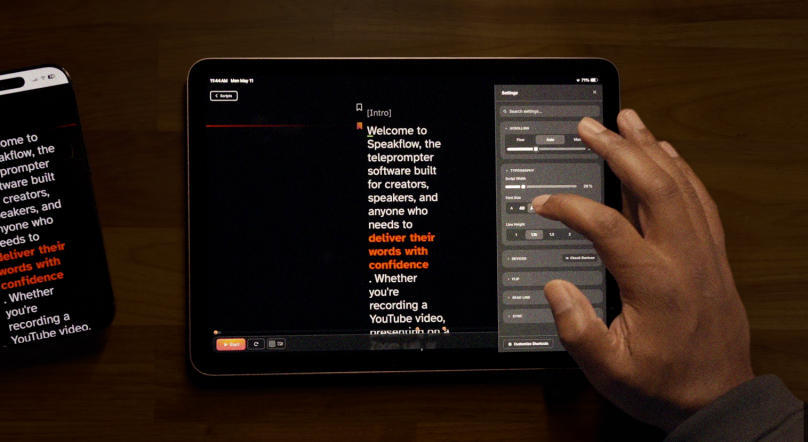
There’s also Auto Mode if you prefer timed scrolling, along with Manual Mode if you want full control yourself.5sf.png3.62 MBYou can also adjust typography, spacing, script width, line height, and alignment directly inside the settings panel.
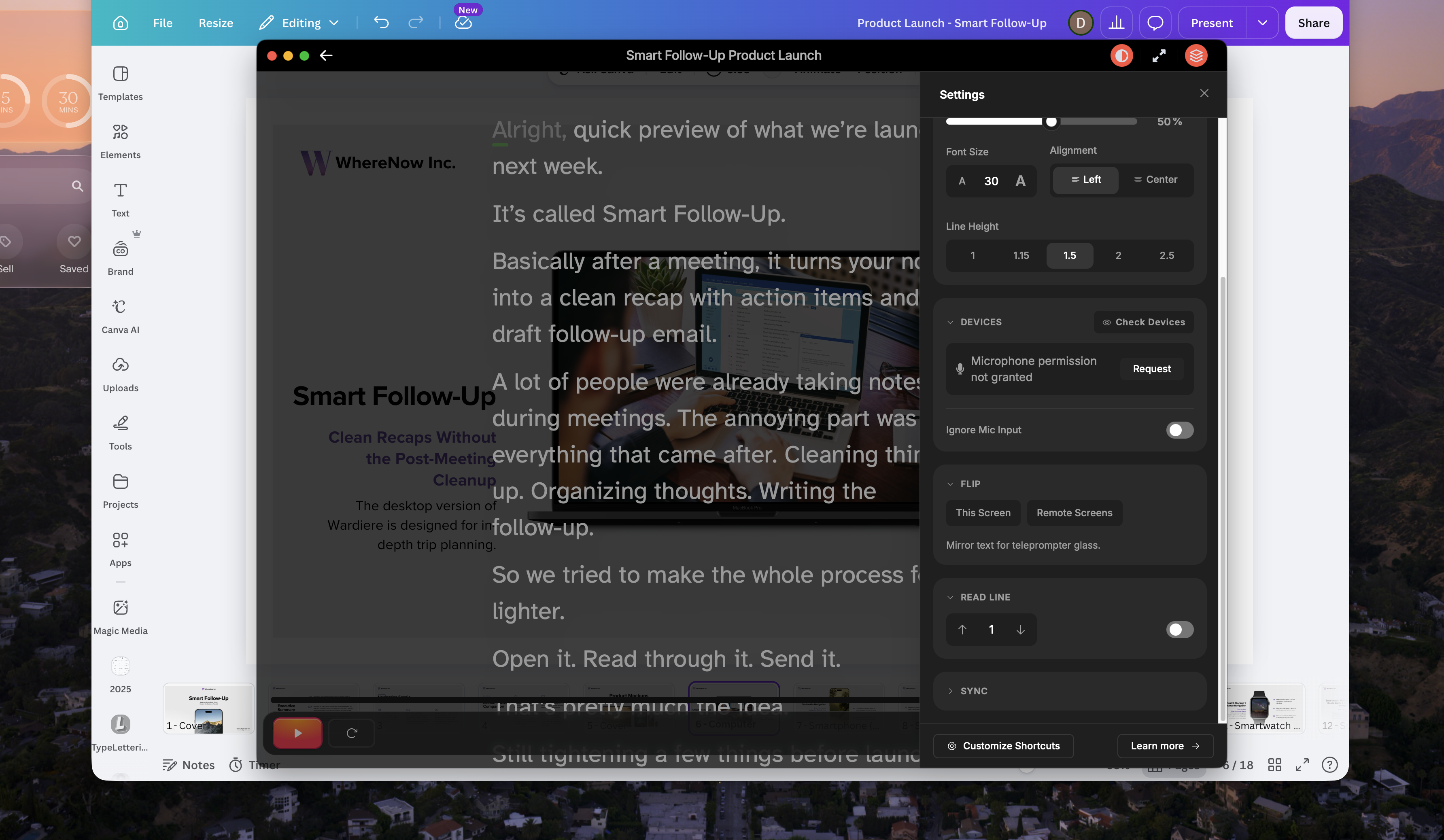
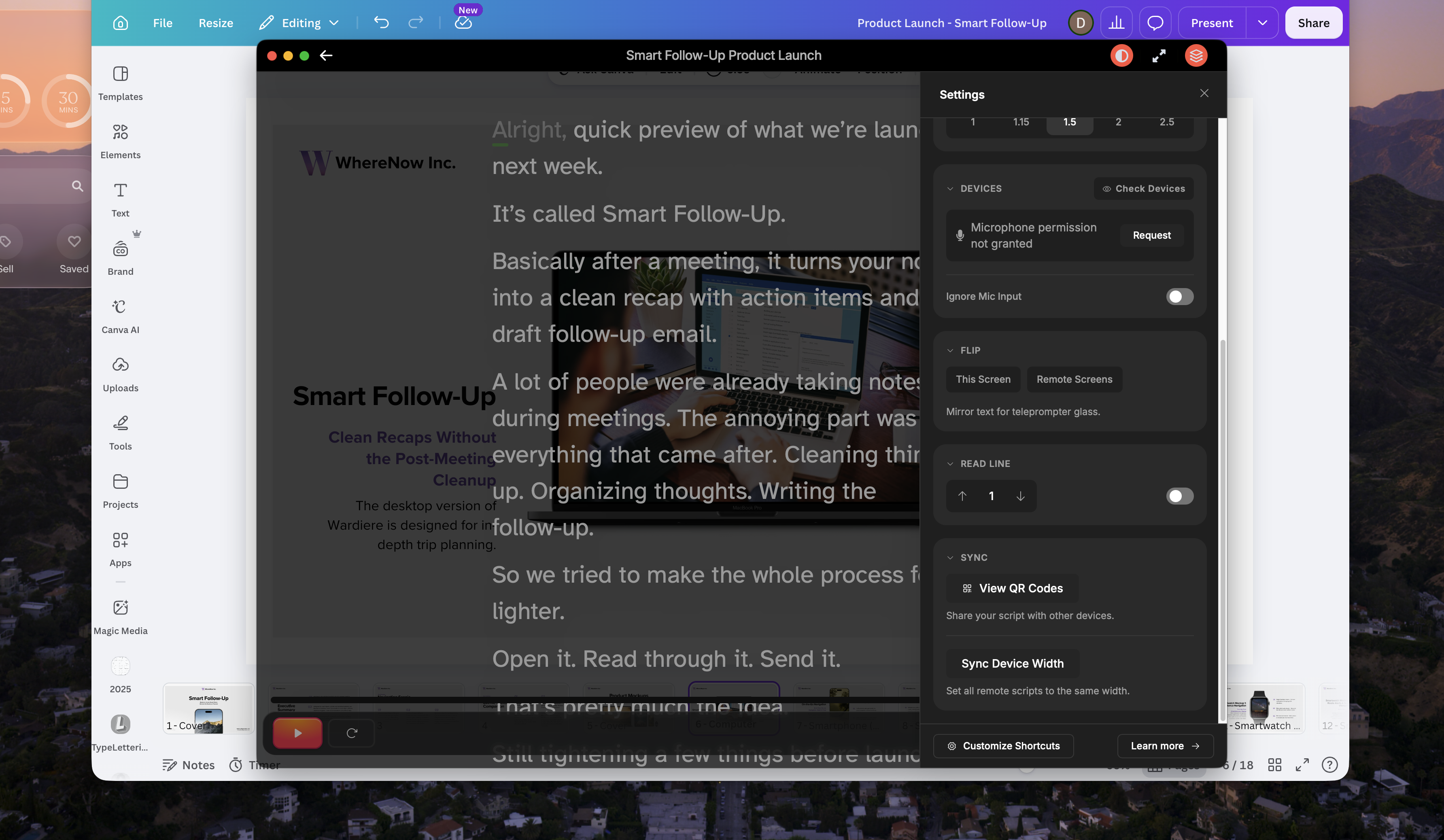
These small adjustments can really help with longer sessions if you need to adjust its readability to optimize your pacing and comfort.7sf.png3.6 MBYou can mirror text for physical teleprompter setups, jump between sections while reading, and quickly check device or microphone permissions before presenting. 8sf.png3.6 MBThe Desktop App also lets you sync scripts across devices using QR pairing.
One especially useful detail is that the script width and formatting you customized can stay consistent even across remote devices, which makes presentations feel more predictable when switching between presenters or devices.
The Desktop App will integrate your Speakflow script into the rest of your setup and your presentation or meeting will be better for it.
You still write and manage your scripts in the browser, but now they sync automatically to the Desktop App. Your scripts will no longer be buried somewhere between a bunch of browser tabs. They’ll be waiting for you when it’s time to present, record, or screen share.
And you will be the only one who can see your script.