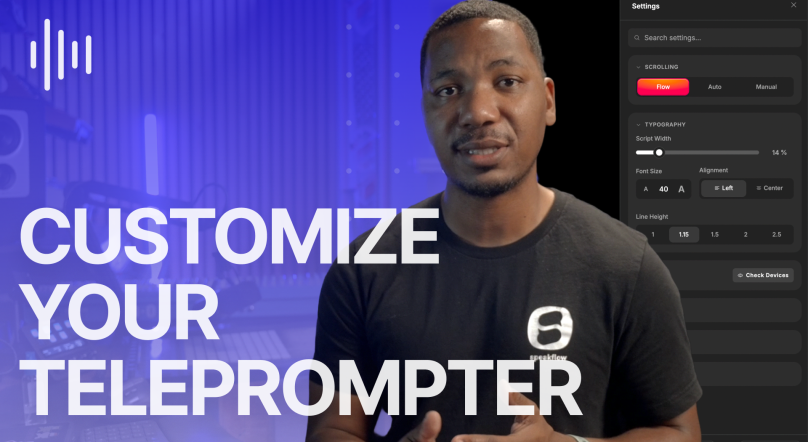
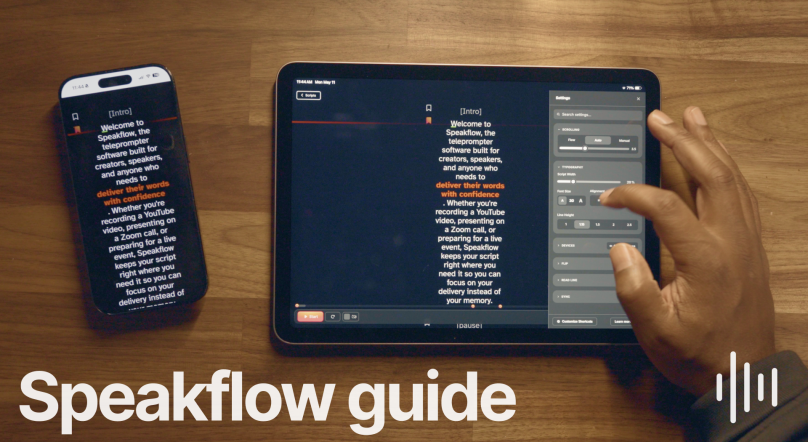
Keep simple talking points on screen during client calls using a teleprompter and stay on track while you present.
Client meetings can come with a lot of pressure, so the last thing you need to be worried about is finding your notes through all the tabs you have open.
Client meetings can come with a lot of pressure, so the last thing you need to be worried about is finding your notes through all the tabs you have open.
Especially when you’re actually presenting the deck, demo, proposal, or whatever else.
For most calls, you really don’t need a full script. That’ll probably make you sound too stiff. You just need a few talking points to help you stay focused.
A short outline is usually enough. Just something to remind you what to cover, what to ask, and where the meeting should go next. Our outline is below, but first, watch our video!
Start with the outline!
Before you write notes, give the meeting a simple order.
- Opener
- Walkthrough
- Questions
- Next steps
This is basically the outline which will help us organize our talking points before the meeting.
For the opener, write the simplest version of why you’re meeting.
It can be something like:
- Why we’re here
- What I’ll walk you through
- What we should decide before we wrap.
This gives the client a clear expectation and it gives you a starting point.
Write cues, not paragraphs
Good talking points should be easy to glance at. They’re anchor lines to remind what comes next.
Let’s go over that outline again.
Let’s go over that outline again.
The opener goes into the why, what you’ll be walking your client through, and what needs to be decided before the next meeting.
You should also dedicate some time to ask your clients questions that you need answered and the next steps that will happen after your meeting.
You should also dedicate some time to ask your clients questions that you need answered and the next steps that will happen after your meeting.
That can usually cover everything for most meetings, but you can always add more detail if you need to. Try to only write the important parts since you don’t want to be tempted to read off a script!
Make the walkthrough easy to follow
When you’re showing a deck, demo, proposal, product, or you’re screensharing, give yourself small reminders for each section.
Like if you’re showing a marketing deck for a business, make a note that you need to go over the timeline in Slide 4 or something like that. Another note can be “pause for feedback,” whatever you might find most helpful.
These notes will be super useful during a call especially since you can just glance at it and not look like you’re reading off something.
Like if you’re showing a marketing deck for a business, make a note that you need to go over the timeline in Slide 4 or something like that. Another note can be “pause for feedback,” whatever you might find most helpful.
These notes will be super useful during a call especially since you can just glance at it and not look like you’re reading off something.
Add the questions you can’t forget
Client questions should be simple. They’re usually just the things you need answered before the call ends.
- What are they deciding?
- What is still unclear?
- Who needs to approve this?
- What could slow this down?
You don’t need a huge list. Just write down the questions that would be annoying to email them five minutes after the call ends.
Be clear about the next step
“Let’s circle back” is an opportunity, not a lull.
Before the meeting, write down the next step you want to end the call on
- Are you sending a recap?
- Scheduling another call?
- Waiting on feedback?
- Getting approval?
- Sending pricing?
Make it specific enough that you can say it out loud at the end.
Keep the notes where you can see them
Writing talking points only helps if you can actually see them during the meeting.
That’s where the Speakflow Desktop App comes in.
With our teleprompter, you can keep your notes above the window you’re presenting, and they will be invisible to the client. Only you can see your notes while they’ll just see your deck or demo.
The Speakflow Desktop App does what an app that allows text on screen while recording or presenting should do. You can pin your notes so they’re always on top of any screen and with the overlay feature, you control the opacity, font size, and scroll speed of them too.
Here’s a simple client meeting note format
Use this before your next call:
Opener
- Why are we meeting, and what are we covering?
- Walkthrough
- What do I need to show or explain?
Questions
- What do I need answered before we wrap?
Next step
- What should happen after the meeting?
With the Speakflow Desktop App, your talking points can stay above the window you’re presenting, so you can stay on track without rambling, or skipping details.